
ChatGPT can become a useful place for planning, writing, coding, learning, research, and business ideas. The problem starts when an important answer gets buried under weeks of chat history. If you use ChatGPT often, saving your best conversations makes it easier to return to useful prompts, drafts, instructions, and project notes later.
Many beginners assume their chats will always be easy to find inside the sidebar. That is not always a safe backup plan. A saved copy gives you more control when you want to keep records, move notes into Google Docs or Notion, share work with a team, or protect important information before deleting old chats.
Why You Should Save Your ChatGPT Conversations

The main reason to save ChatGPT conversations is simple: useful work can disappear from your attention even if it still exists in your account. A chat about a blog outline, coding fix, client proposal, or product idea may be easy to find today, but harder to locate after many new conversations. Clear backups turn those chats into organized resources instead of random items in a sidebar.
Saving chats is also helpful when you use ChatGPT for long-term projects. A content writer may keep conversations for keyword research, article briefs, title ideas, and editing notes. A developer may save troubleshooting steps for a plugin. A student may keep study explanations and revision plans. In each case, the conversation becomes more like a working document.
Another practical reason is access. You may want to read a conversation offline, send it to a colleague, store it in a project folder, or keep a copy before cleaning up old chats. Manual backups work well for one or two important conversations. Account export is better when you want a larger copy of your ChatGPT history and data.
There is also a privacy side. Before saving any chat, check whether it contains personal details, passwords, client data, financial information, or anything you would not want stored in the wrong folder. A good backup system should be useful, but also careful.
How to Save a ChatGPT Conversation Manually
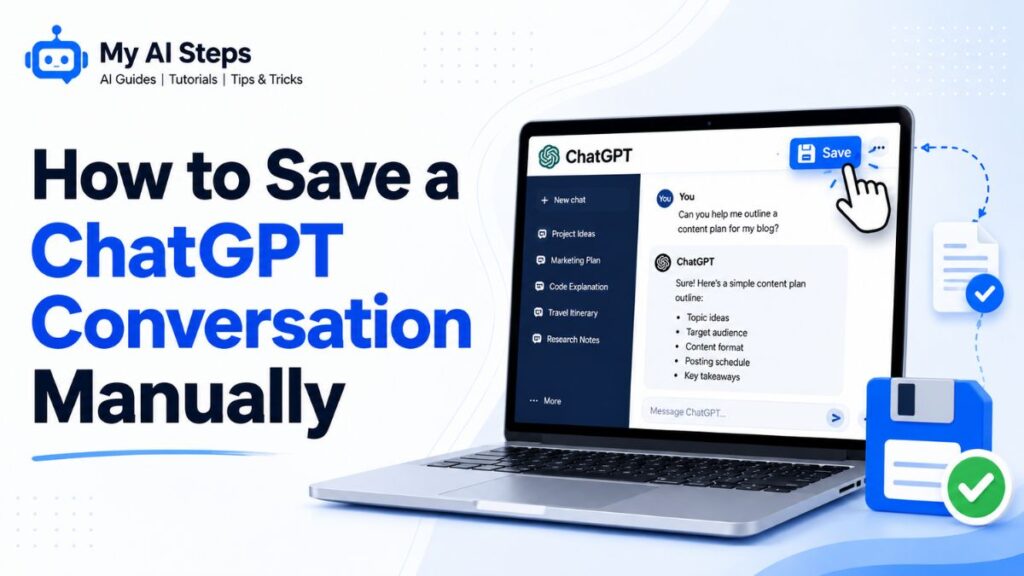
The easiest method is to open the conversation, select the important text, copy it, and paste it into a document. This works well when you only need one chat or one useful part of a longer conversation. You can save it in Google Docs, Microsoft Word, Apple Notes, Notion, or any note-taking app you already use.
A simple format makes the saved file easier to find later. Add the topic at the top, the date, and a short note about why the chat matters. Instead of naming a file “ChatGPT notes,” use something like “Blog Outline – ChatGPT Backup – June 2026.” Small naming habits save time later.
You can also save a conversation as a PDF through your browser. Open the chat, use the print option, and choose “Save as PDF” instead of printing on paper. This is useful when you want a clean record that is harder to edit by mistake.
Screenshots can help when you only need a small part of the conversation, such as a prompt formula, an error explanation, or a design idea. The downside is that screenshots are not searchable like text. If you expect to reuse the content, copy-paste or PDF is usually better.
One common mistake is saving only the AI answer and forgetting the prompt that created it. The prompt is often just as important as the output. If you want to reuse the method later, save both your message and ChatGPT’s response.
How to Export ChatGPT Conversations From Your Account

Manual saving is good for selected chats, but account export is better when you want a broader backup. ChatGPT includes a data export feature in account settings. It can create a downloadable file that contains your conversation data and other account-related data.
To start, sign in to ChatGPT and open your account menu. Go to Settings, then Data Controls. Look for the export option and confirm the request. You may need to verify that you own the account through your email address or phone number. After the export is ready, a download link is sent to your registered email or phone.
The exported file usually comes as a ZIP file. After downloading it, extract the folder and review the files inside. Conversation data may appear in a structured file format, which can look less friendly than a normal document. The purpose is to give you a copy of your data, not a designed reading file.
After export, store the ZIP file carefully. Use a private folder, protected cloud storage, or an external drive if the content is important. Avoid uploading the full export into random tools because it may include more than the one chat you wanted to save.
Export options may vary by account type. Personal accounts may have export access, while some managed workspaces, business setups, or school accounts may work differently depending on admin settings. If you do not see the option, check your account type and current Data Controls menu first.
Can You Download ChatGPT Chats as PDF Files?
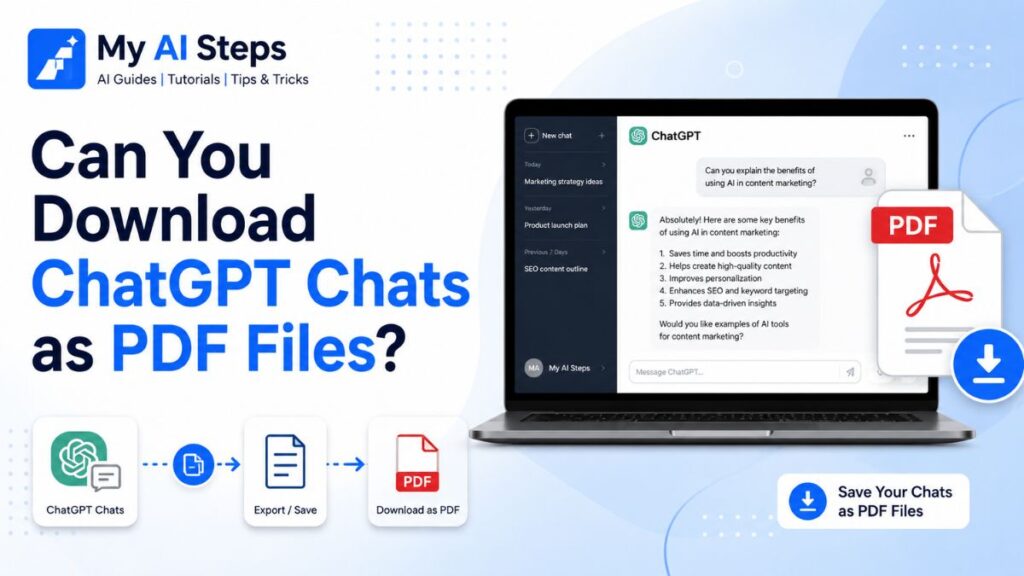
ChatGPT does not always give a direct “download as PDF” button for every conversation, but you can still save a chat as a PDF using your browser. This is one of the easiest ways to keep a readable copy of a useful conversation without copying everything into a separate document.
The common method is to open the chat you want to save, press the print option in your browser, then choose “Save as PDF” as the destination. On most computers, this works from Chrome, Edge, Safari, and Firefox. You are not actually printing the page. You are using the print menu to create a PDF file from the conversation page.
This method is useful when you want to keep the full chat layout, including your prompts and the replies. For example, if you used ChatGPT to plan a blog post, write a client email, or solve a coding issue, a PDF can keep the full flow in one file. It is also easier to share with someone who does not need access to your ChatGPT account.
Before saving, scroll through the conversation and check what is visible. Very long chats may not always format perfectly in a PDF. Some parts can look stretched, broken, or too small depending on the browser. If the conversation is important, open the PDF after saving and make sure the full content is there.
PDF files are best for reading and record keeping. They are not the best choice if you plan to edit the text later. For editing, copy the conversation into Google Docs, Microsoft Word, or Notion instead. That gives you more control over headings, notes, and formatting.
How to Copy and Paste ChatGPT Conversations Safely
Copying and pasting is the fastest manual method when learning How to Save ChatGPT Conversations. It works well when you only need one answer, one prompt, or a selected part of a longer chat. The key is to copy carefully and save the content in a place where you can find it later.
Start by selecting both your prompt and ChatGPT’s reply. Many people only save the answer, then later forget what question created it. This can be a problem when the saved response depends on specific instructions. A small prompt change can produce a very different result, so keeping the original message gives better context.
Use a clean document format. Add a short title, date, topic, and any notes that explain why the chat is useful. For example, you might write “Saved prompt for product description,” “Blog outline idea,” or “Fix for WordPress error.” These small labels make the saved content easier to understand weeks later.
Be careful with private information. If the chat includes client names, passwords, account details, business numbers, personal addresses, or private emails, remove that information before saving or sharing the file. A saved conversation can travel much farther than you expect once it is copied into another app.
Formatting can also change during copy and paste. Code blocks, tables, bullet points, and numbered steps may not always paste correctly. After pasting, quickly scan the document. Fix broken spacing, missing bullets, or mixed formatting before you close it. This small check can prevent confusion later.
If you are saving content for publishing, do not copy it blindly. Read it, edit it, and check facts before using it on a website, social media post, email campaign, or client document. ChatGPT can help with drafting, but your final version should still match your voice, brand, and real information.
Best Ways to Organize Saved ChatGPT Conversations
Saving chats is helpful, but saving them without a system can create another mess. After a few weeks, a folder full of random files can become just as hard to search as the original ChatGPT sidebar. A simple organization method makes your backups more useful.
Start with folders based on purpose. You can create folders such as “Blog Ideas,” “Client Work,” “SEO Research,” “Code Help,” “Business Planning,” “Prompts,” and “Personal Notes.” This is better than putting every saved chat into one large folder.
File names matter more than most beginners think. Avoid names like “ChatGPT 1” or “notes final.” Use a clear name that includes the topic and date. For example, “SEO Article Outline – June 2026” is easier to understand than “chat backup.” If you work with clients, add the client name or project name to the file.
For long-term use, create a simple tagging habit. In tools like Notion, Google Drive, or Apple Notes, you can add labels such as “prompt,” “draft,” “research,” “ideas,” “technical fix,” or “client content.” This helps when one saved conversation could belong to more than one category.
You can also keep a master index. This can be a simple spreadsheet with columns for title, topic, date, tool used, file location, and short notes. It may sound like extra work, but it becomes useful when you have many saved chats. A content creator, for example, can quickly find old outlines, keyword ideas, and headline drafts.
Do not save everything. This is a common mistake. If every small test chat becomes a saved file, your backup system gets crowded fast. Save conversations that have real value, such as working prompts, strong drafts, research notes, technical solutions, or project decisions.
How to Access Previously Saved ChatGPT Chats
There are two main ways to access saved ChatGPT chats: inside your ChatGPT account or from your own backup files. The right method depends on how you saved the conversation in the first place.
If the chat is still inside ChatGPT, use the sidebar or search feature to find it. Clear titles help a lot here. If a conversation is named automatically, rename it to something useful while the topic is still fresh. A title like “Email Campaign Ideas for June Sale” is much easier to find than a vague title created from the first message.
If you saved the chat outside ChatGPT, go to the app or folder where you stored it. This may be Google Drive, Dropbox, OneDrive, Notion, Apple Notes, Microsoft Word, or a local computer folder. Use the file name, date, or topic keywords to search. If you followed a naming system, this step becomes much easier.
PDF files are good for opening and reading old conversations. Text documents are better when you want to reuse or edit the content. Notes apps are useful when you want quick access from your phone. Cloud storage works well if you use more than one device.
For work projects, keep saved chats near the related files. If a conversation helped you create a blog post, store it in the same folder as the article draft, keyword research, and images. If it helped solve a website issue, keep it with the project notes. Context saves time.
One useful habit is to review saved conversations once a month. Delete old tests, rename unclear files, and move important chats into the right folders. This keeps your backup system clean and practical instead of turning it into another place full of forgotten notes.
Common Issues When Saving ChatGPT Conversations

One common issue is missing content after saving a long chat. This can happen when a browser PDF does not capture the full conversation properly, or when the page layout breaks during printing. After saving any important chat, open the file and check the beginning, middle, and end. Do not assume the backup worked until you have reviewed it.
Formatting problems are also common. Tables may lose their shape, code blocks may shift, and bullet points may paste into a document as plain text. This is not always a serious problem, but it can make the saved conversation harder to read. If the chat includes code, formulas, or structured steps, paste it into a document that keeps formatting well.
Another issue is saving the wrong chat or only part of the conversation. This happens a lot when users have many similar chats open. For example, you may have five different chats about blog writing, but only one contains the final outline. Rename important chats inside ChatGPT before saving them so you can avoid confusion.
Some users also forget where they saved the file. They download a PDF, close the browser, and later cannot find it. Check your Downloads folder first. Then search by the file name or date. A better habit is to move saved chats into the right folder as soon as you create the backup.
Export files can also confuse beginners. A ChatGPT data export may not look like a normal article or PDF. It may include structured files that are useful for backup, but not always easy to read at first glance. For everyday use, manual saving is usually simpler. For full account backup, export is more suitable.
Tips to Keep Your ChatGPT Conversations Secure
Security matters when saved conversations include private notes, business ideas, client work, passwords, personal details, or unfinished drafts. Before saving a chat, read through it and remove anything sensitive that does not need to be stored. A clean backup is safer than a folder full of private information.
Use trusted storage. Google Drive, OneDrive, Dropbox, iCloud, Notion, and local computer folders can all work, but your account security matters. Use a strong password and turn on two-factor authentication where available. This adds an extra layer of protection if someone tries to access your saved files.
Be careful when sharing saved chats. A PDF or copied document may include more information than you planned to send. For example, a client may need the final content draft, but not your private notes, pricing discussion, or prompt experiments. Create a cleaned version before sharing.
Do not store full ChatGPT exports in random online tools. An export may include more account data than a single conversation. If you only need one chat, save that one chat manually instead of uploading a full export somewhere else.
For business use, create a simple privacy rule. Decide what can be saved, where it can be stored, and who can access it. This is useful for agencies, writers, developers, virtual assistants, and teams that use ChatGPT for client tasks. Good file habits protect both your work and other people’s information.
How to Save ChatGPT Conversations Across Different Devices
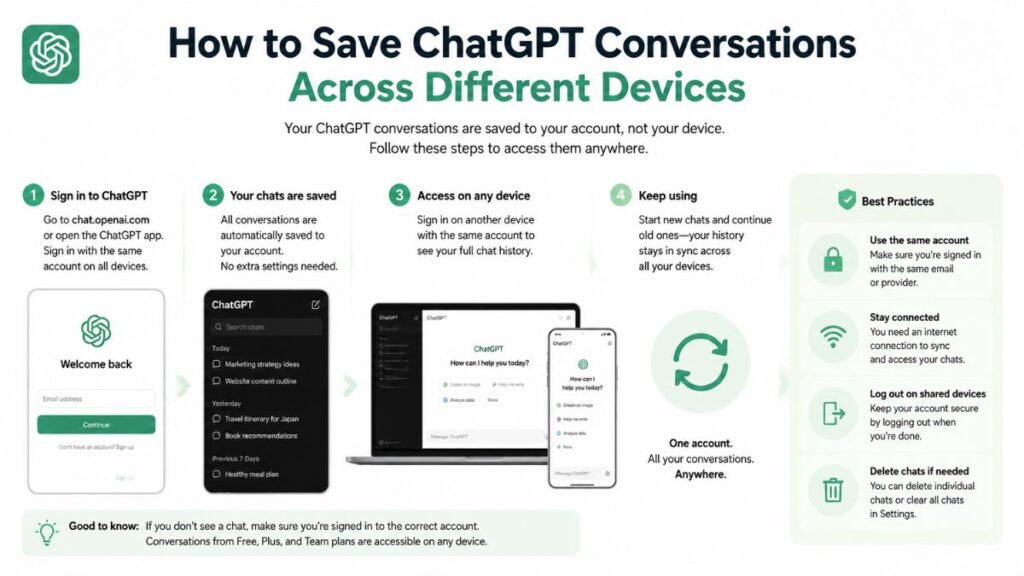
If you use ChatGPT on a laptop, phone, and tablet, choose a saving method that works across all of them. Cloud storage is usually the easiest option. You can save a PDF or document on your computer, then access it later from your phone through Google Drive, iCloud, OneDrive, Dropbox, or another storage app.
On a desktop browser, PDF saving is often the cleanest method. Open the chat, use the print menu, and save it as a PDF. Then upload it to your chosen folder. This works well for longer conversations, research notes, and records you want to keep in a fixed format.
On mobile, copying and pasting may be easier. You can copy the useful part of a chat and paste it into Apple Notes, Google Keep, Notion, or a document app. This works well for short answers, prompt ideas, quick summaries, and reminders.
If you move between devices often, use the same folder system everywhere. For example, keep one main folder called “ChatGPT Saved Chats,” then create subfolders by topic. This keeps your backups consistent whether you are working from a MacBook, Windows laptop, iPhone, Android phone, or tablet.
Syncing can sometimes take a little time. If you save a file on your laptop and cannot see it on your phone right away, refresh the app or check your internet connection. Also make sure you saved the file inside a synced folder, not only on your desktop.
The best method depends on your goal. Use PDFs for reading, documents for editing, notes apps for quick access, and cloud folders for multi-device storage. That is the practical answer when people ask How to Save ChatGPT Conversations without losing access later.
Conclusion
Saving ChatGPT conversations is not difficult once you choose the right method for your needs. Manual copying is fast, PDF saving is good for records, and account export is useful when you want a wider backup of your data. The important part is to check the saved file and keep it organized.
A simple system can save a lot of time later. Name files clearly, store them in the right place, and protect anything private before sharing or uploading it anywhere else.
Frequently Asked Questions
Can I save a ChatGPT conversation as a PDF?
Yes, you can usually use your browser’s print menu and choose “Save as PDF.”
Is copying and pasting a ChatGPT chat safe?
Yes, but remove private details before saving or sharing the copied text.
Where should I store saved ChatGPT chats?
Use a secure folder in Google Drive, OneDrive, iCloud, Dropbox, Notion, or your computer.
Can I access saved chats on my phone?
Yes, if you save them in a cloud folder or notes app that syncs across devices.
Should I save every ChatGPT conversation?
No, save only useful chats such as prompts, drafts, research, plans, and important fixes.