

ChatGPT may be slow today because of high server demand, temporary OpenAI service issues, a weak internet connection, browser cache problems, too many extensions, an outdated browser, or a very long conversation history. The fastest fixes are to check the OpenAI status page, refresh the page, start a new chat, clear your browser cache, disable extensions, and test your internet connection.
What Causes ChatGPT to Be Slow Today?

ChatGPT can feel slow for several reasons. Sometimes the issue is on OpenAI’s side, but many times it comes from your own browser, device, or internet connection.
The most common causes include:
- High traffic during peak usage hours
- OpenAI server issues or degraded performance
- Slow or unstable internet connection
- Long ChatGPT conversation history
- Browser cache and cookie problems
- Too many browser extensions
- VPN or proxy interference
- Older device or low system memory
- Outdated browser or operating system
Let’s break these down in a simple way.
Too Many People Are Using ChatGPT at the Same Time
One of the biggest reasons ChatGPT slows down is high demand. When millions of people use ChatGPT at the same time, the system has to process a huge number of requests.
This usually happens during busy hours, such as:
- Weekday working hours
- Evening hours in large countries
- Exam seasons
- Major news events
- After a new ChatGPT feature or model update
Think of it like traffic on a highway. The road may be working fine, but when too many cars arrive at once, everything slows down.
When this happens, you may notice:
- Slower response generation
- Messages taking longer to send
- The page loading slowly
- Temporary errors or failed responses
There is not much you can do if the slowdown is caused by heavy server demand. However, you can try using ChatGPT during less busy hours, such as early morning or late night.
ChatGPT May Be Down or Having Server Issues

Sometimes ChatGPT is not just slow. It may be experiencing a temporary service issue.
This can happen when OpenAI is dealing with:
- Server overload
- Maintenance work
- Technical errors
- Degraded performance
- Partial outages
- Login or conversation errors
The best way to check this is by visiting OpenAI’s official status page. OpenAI uses its status page to show whether ChatGPT, APIs, and other services are operational or experiencing issues.
Signs ChatGPT May Be Having Server Problems
ChatGPT may be experiencing server-side issues if:
- It is slow on every browser
- It is slow on every device
- It does not work on both Wi-Fi and mobile data
- You see repeated error messages
- Other users are reporting the same problem
- The OpenAI status page shows degraded performance
If the problem is on OpenAI’s side, the best option is to wait and try again later.
A Long Chat History Can Make ChatGPT Slower

Many users do not realize this, but long conversations can make ChatGPT feel slower.
When you continue the same chat for a long time, ChatGPT has more context to process. This helps it understand your previous messages, but it can also make responses slower.
For example, if your chat has:
- 50+ messages
- Long paragraphs
- Many uploaded files
- Lots of instructions
- Multiple topic changes
then ChatGPT may take longer to respond because it has more information to consider.
Easy Fix
Start a new chat when:
- The old conversation becomes very long
- You are starting a new topic
- ChatGPT becomes slow only in one chat
- You notice delays after many messages
Starting a fresh conversation often makes ChatGPT faster immediately.
Your Internet Connection May Be Slowing ChatGPT Down

ChatGPT needs a stable internet connection because it sends your message to OpenAI’s servers and then streams the response back to your screen.
Even if your internet is working, it may still cause delays if it is unstable.
Common Internet Problems That Affect ChatGPT
Your connection may be the issue if:
- Pages load slowly in general
- Videos buffer often
- Wi-Fi signal is weak
- Your router has not been restarted in a long time
- Many devices are using the same network
- You are using mobile data with poor signal
- Your ping is high
A slow connection can make ChatGPT look like it is the problem, even when the service itself is working normally.
How Much Internet Speed Does ChatGPT Need?
ChatGPT does not need extremely fast internet, but it does need a stable connection. A download speed of around 5–10 Mbps is usually enough for normal use, but low latency and connection stability matter more than speed alone.
If your internet keeps dropping for a second or two, ChatGPT may pause, freeze, or fail to complete the response.
Wi-Fi Problems Can Make ChatGPT Feel Slow
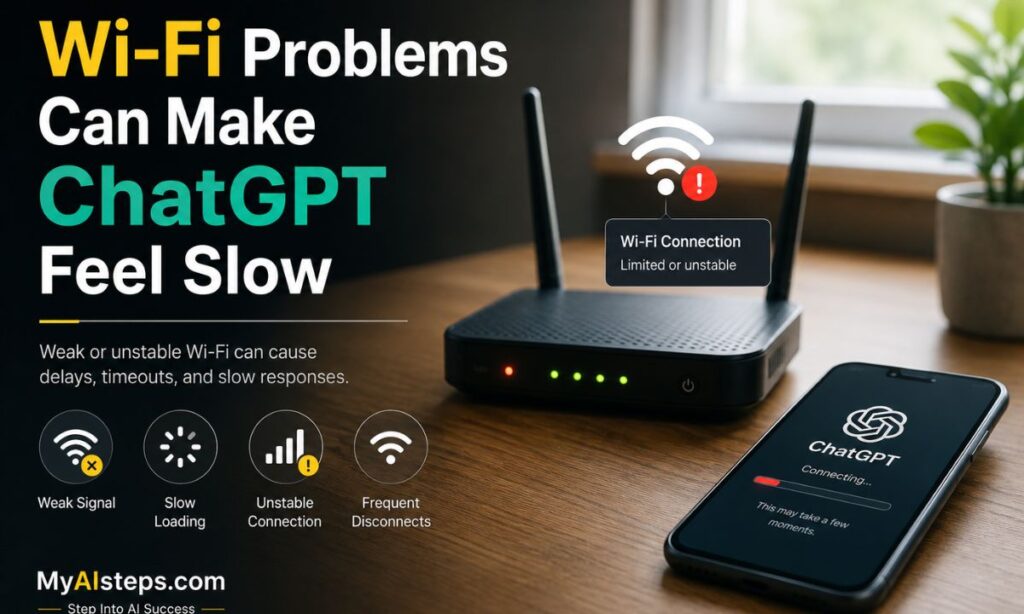
Wi-Fi is convenient, but it is not always stable. Walls, distance from the router, other devices, and signal interference can all reduce performance.
You may notice ChatGPT slowing down if:
- You are far from the router
- Your router is in a closed room or cabinet
- Many people are using the same Wi-Fi
- Someone is streaming, gaming, or downloading large files
- Your router is old or overheating
Quick Wi-Fi Fixes
Try these steps:
- Move closer to your router.
- Restart your router by unplugging it for 30 seconds.
- Pause large downloads or video streams.
- Disconnect devices you are not using.
- Try mobile data or another Wi-Fi network.
- Use an Ethernet cable if possible.
If ChatGPT becomes faster on another network, your internet connection was likely the problem.
Browser Cache and Cookies Can Cause Problems

Your browser stores temporary files, cookies, and cached data to make websites load faster. Most of the time this helps, but sometimes old or corrupted data can make ChatGPT slow or buggy.
This can cause problems like:
- ChatGPT not loading properly
- Old sessions behaving strangely
- Slow page refresh
- Login issues
- Buttons not responding
- Messages failing to send
OpenAI’s own help guidance also recommends clearing browser cache and cookies when ChatGPT is slow or unresponsive.
Easy Fix
Clear cache and cookies for ChatGPT or your browser, then reopen ChatGPT and sign in again.
You can also test ChatGPT in an incognito/private window. If it works faster there, your normal browser data or extensions may be causing the issue.
Browser Extensions Can Interfere With ChatGPT

Browser extensions can be useful, but some of them slow down websites.
Extensions that commonly affect ChatGPT include:
- Ad blockers
- Grammar tools
- VPN extensions
- Privacy extensions
- Script blockers
- Password managers
- Screenshot tools
- SEO extensions
These tools may scan, block, modify, or delay parts of the ChatGPT page. As a result, the site may load slowly or respond late.
How to Test This
Open ChatGPT in incognito mode. Most extensions are disabled there by default.
If ChatGPT is faster in incognito mode, one of your extensions may be the problem. Disable extensions one by one until you find the one causing the slowdown.
VPNs and Proxies Can Add Extra Delay

A VPN can protect your privacy, but it can also slow ChatGPT down. This happens because your connection travels through another server before reaching ChatGPT.
A VPN may cause:
- Higher latency
- Slower loading
- Login problems
- More frequent errors
- Delayed responses
This does not mean every VPN is bad. Some VPNs work fine. But if ChatGPT suddenly becomes slow while your VPN is on, turn it off for a moment and test again.
If ChatGPT becomes faster without the VPN, either keep it off while using ChatGPT or switch to a faster VPN server.
Your Device May Be Running Too Many Tasks

Sometimes ChatGPT is slow because your device is overloaded.
This is common when you have:
- Too many browser tabs open
- Several apps running in the background
- Low RAM
- An older laptop or phone
- Heavy software open at the same time
- Downloads, updates, or video calls running
ChatGPT itself runs on OpenAI’s servers, but your device still has to load the website, display the text, and keep the browser responsive.
Quick Fix
Close unnecessary tabs and apps. Then refresh ChatGPT.
This simple step can make a big difference, especially on older computers or phones.
An Outdated Browser Can Affect ChatGPT Performance
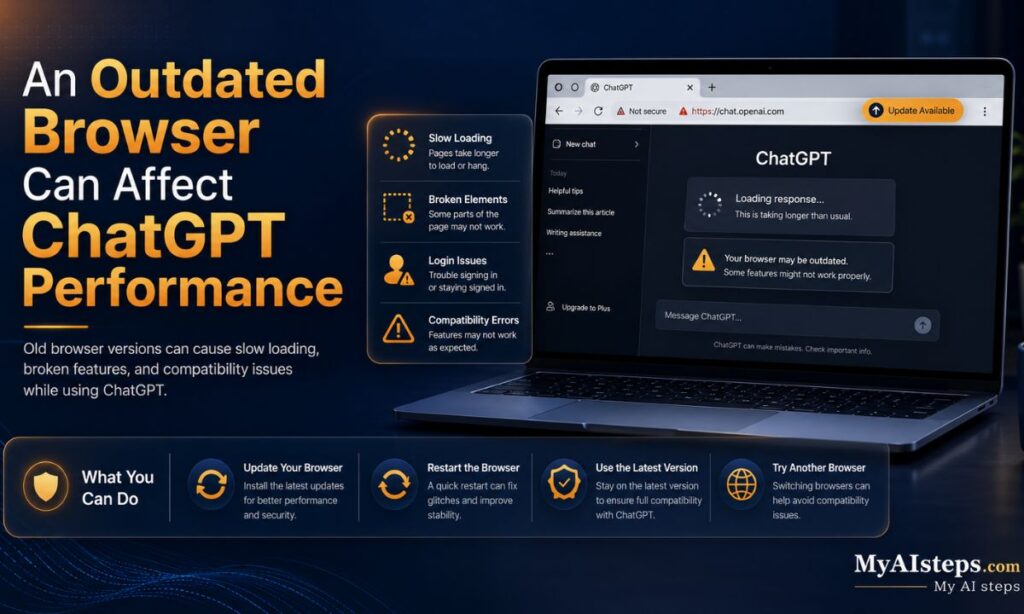
If your browser is old, ChatGPT may not run as smoothly as it should. Modern websites rely on updated browser features, security patches, and performance improvements.
You should update your browser if:
- ChatGPT loads slowly
- Buttons do not respond
- The page freezes
- You see layout issues
- Other websites are also acting strangely
Use the latest version of Chrome, Firefox, Safari, Edge, or the official ChatGPT app for the best experience.
How to Fix ChatGPT Being Slow
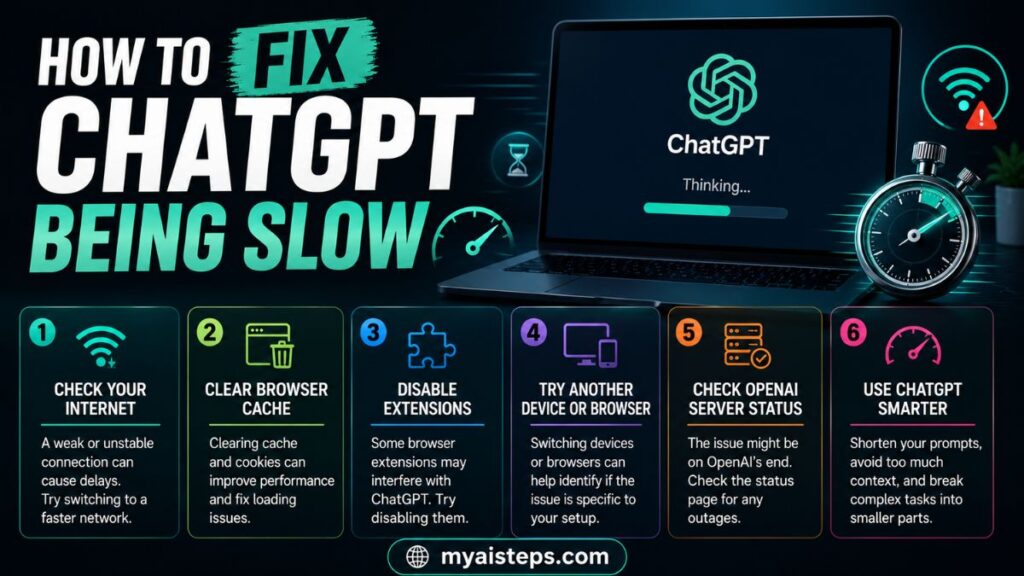
Here is a simple step-by-step troubleshooting process.
Step 1: Check OpenAI Status
First, check whether ChatGPT is having a known issue. If the status page shows an incident or degraded performance, the issue is not on your side.
Step 2: Refresh the Page
Sometimes a simple refresh fixes temporary loading problems.
Step 3: Start a New Chat
If your current conversation is very long, start a fresh chat. This is one of the easiest ways to improve response speed.
Step 4: Clear Cache and Cookies
Old browser data can slow things down. Clear cache and cookies, then sign in again.
Step 5: Disable Extensions
Turn off extensions temporarily, especially ad blockers, VPN tools, grammar tools, and privacy extensions.
Step 6: Test Another Browser
Try ChatGPT in a different browser. If it works faster there, your original browser is likely the problem.
Step 7: Check Your Internet Speed
Use a speed test tool and check your download speed, upload speed, and ping.
Step 8: Restart Your Router
Unplug your router for 30 seconds, then plug it back in.
Step 9: Turn Off VPN
Disable your VPN or proxy and test ChatGPT again.
Step 10: Restart Your Device
If nothing else works, restart your computer or phone.
Quick Troubleshooting Checklist
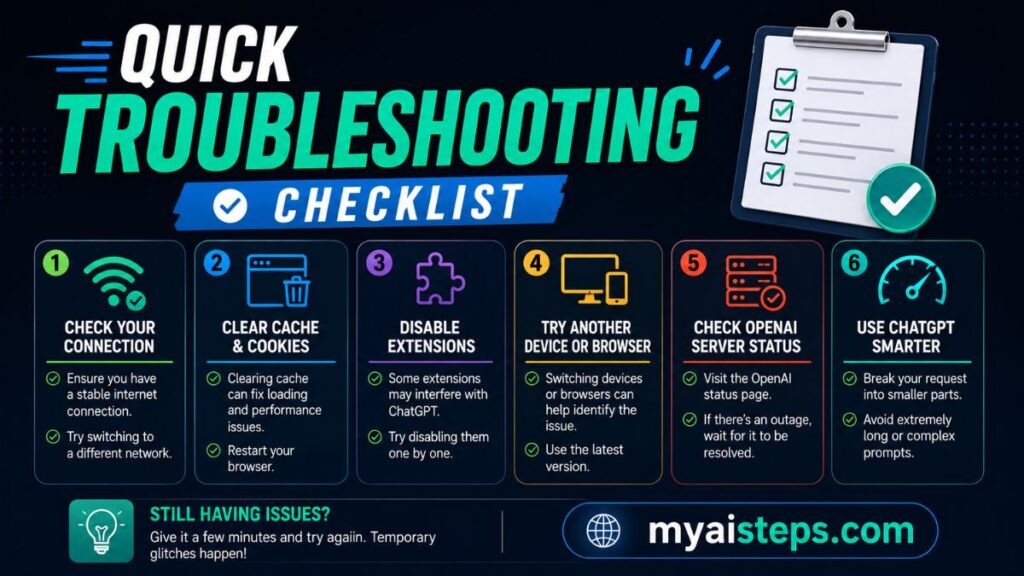
Use this checklist when ChatGPT is slow:
| Problem | What to Try |
| ChatGPT slow for everyone | Check OpenAI status page |
| Only one chat is slow | Start a new chat |
| Page loads slowly | Clear cache and cookies |
| Works in incognito only | Disable browser extensions |
| Slow on Wi-Fi | Restart router or move closer |
| Slow with VPN | Turn VPN off temporarily |
| Slow on one device | Close apps or restart device |
| Slow on one browser | Try another browser |
| Frequent errors | Check server status or contact support |
When Should You Contact OpenAI Support?
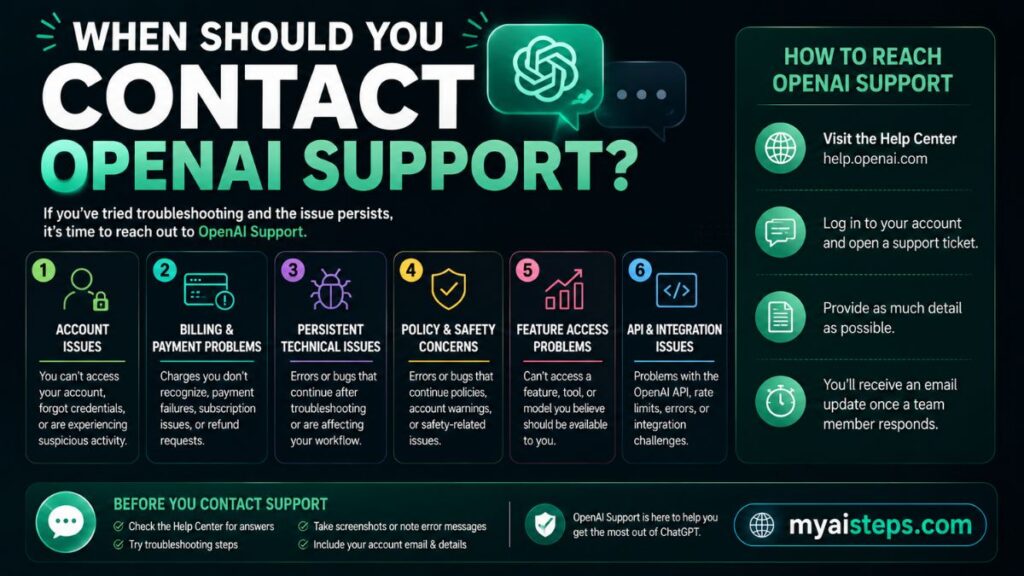
You should contact OpenAI Support if ChatGPT stays slow after you have tried basic troubleshooting.
Contact support when:
- ChatGPT is slow across all devices
- It is slow on different networks
- You keep seeing error messages
- Your Plus or paid account is not working properly
- You cannot log in
- Conversations fail repeatedly
- The issue continues for several days
Before contacting support, write down:
- When the issue started
- Which browser you are using
- Which device you tested
- Whether you tried incognito mode
- Whether you cleared cache
- Any error messages you saw
This helps support understand the issue faster.
Final Thoughts
ChatGPT can become slow for many reasons, but most of them are easy to fix. Sometimes the problem is OpenAI server demand. Other times, it is your browser, internet connection, VPN, device, or long chat history.
Start with the simple fixes first: check the status page, refresh the page, start a new chat, clear cache, and disable extensions. If ChatGPT is still slow, test your internet connection and try another browser or device.
Most of the time, one of these steps will get ChatGPT running smoothly again.
FAQs
Why is ChatGPT so slow today?
ChatGPT may be slow today because of high traffic, OpenAI server issues, your internet connection, browser problems, a long chat history, VPN delay, or device performance issues.
Is ChatGPT down right now?
The fastest way to check is by visiting OpenAI’s official status page. If ChatGPT shows degraded performance or an active incident, the issue is likely on OpenAI’s side.
Does a long chat make ChatGPT slower?
Yes, long conversations can make ChatGPT slower because the system has more context to process before answering. Starting a new chat can improve speed.
Can clearing cache make ChatGPT faster?
Yes. Clearing browser cache and cookies can fix loading issues, outdated session problems, and slow browser performance.
Can browser extensions slow down ChatGPT?
Yes. Ad blockers, grammar tools, VPN extensions, privacy tools, and script blockers can interfere with ChatGPT and make it slower.
Does VPN affect ChatGPT speed?
Yes, a VPN can increase latency because your connection is routed through another server. Turning it off temporarily can help you test the difference.
Why is ChatGPT slow on mobile?
ChatGPT may be slow on mobile because of weak mobile data, poor Wi-Fi signal, an older phone, background apps, or a slow mobile browser.
What internet speed is good for ChatGPT?
A stable connection is more important than very high speed. Around 5–10 Mbps is usually enough, but low ping and stable Wi-Fi make the experience smoother.
Is ChatGPT Plus faster?
ChatGPT Plus may offer better access and faster performance during busy times, but if your browser or internet is the issue, upgrading may not fully solve the problem.
What should I do if ChatGPT keeps timing out?
Refresh the page, check OpenAI status, test your internet connection, start a new chat, clear cache, disable extensions, and try again. If the issue continues, contact OpenAI Support.