
If you’ve been using ChatGPT for a while, there’s a good chance you’ve come across the frustrating “Error in message stream” message. It often appears without warning, right when you’re waiting for a response. The first time I saw it, I assumed there was something wrong with my account. I refreshed the page, resent my message, and even waited a few minutes, but nothing seemed to work.
What makes this error particularly confusing is that ChatGPT rarely explains what’s causing it. You’re left wondering whether the problem is your internet connection, browser, device, or ChatGPT itself. The good news is that the error is usually temporary and can often be fixed with a few simple troubleshooting steps. Let’s take a closer look at what it means and how to resolve it.
What Does “Error in Message Stream” Mean?
In simple terms, ChatGPT was in the middle of generating a response and the connection between your device and ChatGPT’s servers was interrupted.
Think of it like a phone call that suddenly drops.
The conversation was happening normally.
Then something broke the connection.
When that happens, ChatGPT can’t finish sending the response, and you may see the “Error in message stream” message instead.
What’s confusing is that the cause isn’t always the same.
Sometimes the issue comes from:
- A weak internet connection
- Browser problems
- Temporary server issues
- A very long conversation
- High traffic on ChatGPT’s servers
That’s why one fix might work for one person but not another.
The Most Common Cause: A Temporary Connection Problem
Honestly, this is responsible for a surprising number of cases.
I’ve had the error appear while my internet looked perfectly fine.
Websites loaded.
Videos played.
Everything seemed normal.
Yet ChatGPT still failed to complete the response.
The reason is that AI conversations often require a stable connection for a longer period than loading a simple webpage.
Even a brief interruption can sometimes trigger the error.
Before trying anything complicated, check:
- Your Wi-Fi connection
- Mobile hotspot stability
- VPN connections
- Network interruptions
A quick reconnect is often enough to solve the problem.
Refreshing the Page Often Fixes It
This might sound too simple.
But it’s usually the first thing I try.
Refreshing the page forces ChatGPT to establish a new connection with the server.
In many cases, that’s all that’s needed.
If you were halfway through a response, don’t panic.
ChatGPT often keeps the conversation history intact, allowing you to resend the prompt.
Sometimes the second attempt works immediately.
It’s one of those fixes that feels almost disappointingly simple when it works.
Check Whether ChatGPT Is Having Server Problems
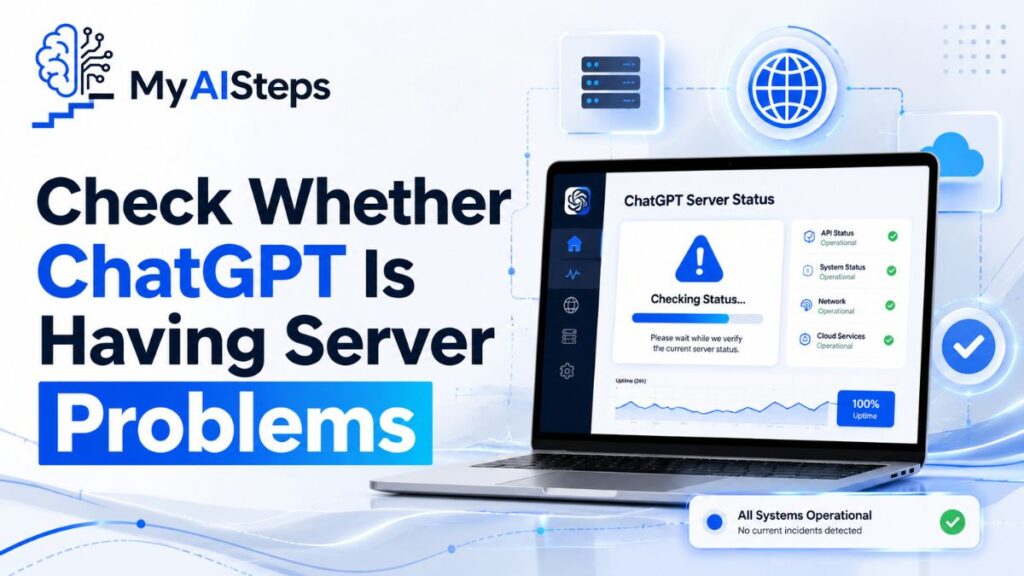
Here’s something many users forget.
The issue may not be on your side at all.
Every now and then, ChatGPT experiences outages, slowdowns, or temporary service disruptions.
When that happens, users can see errors such as:
- Error in message stream
- Network error
- Failed to get response
- Conversation not loading
If multiple users are experiencing similar issues, troubleshooting your laptop for an hour probably won’t help.
One thing I’ve learned is that checking service status early can save a lot of frustration.
There’s no point changing browser settings if the servers themselves are struggling.
Long Conversations Can Sometimes Trigger the Error
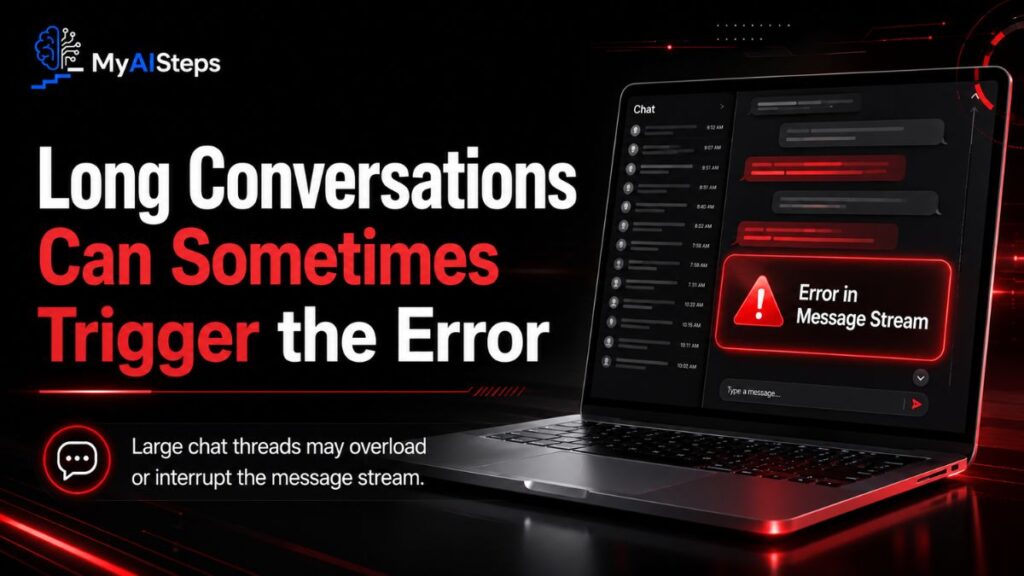
This was surprising when I first noticed it.
The longer a conversation becomes, the more information ChatGPT has to process.
Most of the time, that’s not a problem.
Occasionally, however, extremely long chats can become unstable.
You might notice:
- Slower responses
- Delays
- Failed messages
- Streaming errors
When this happens, starting a fresh conversation often solves the issue.
You can even copy the important context into a new chat if necessary.
It’s not ideal, but it works.
Browser Extensions Can Cause Unexpected Problems
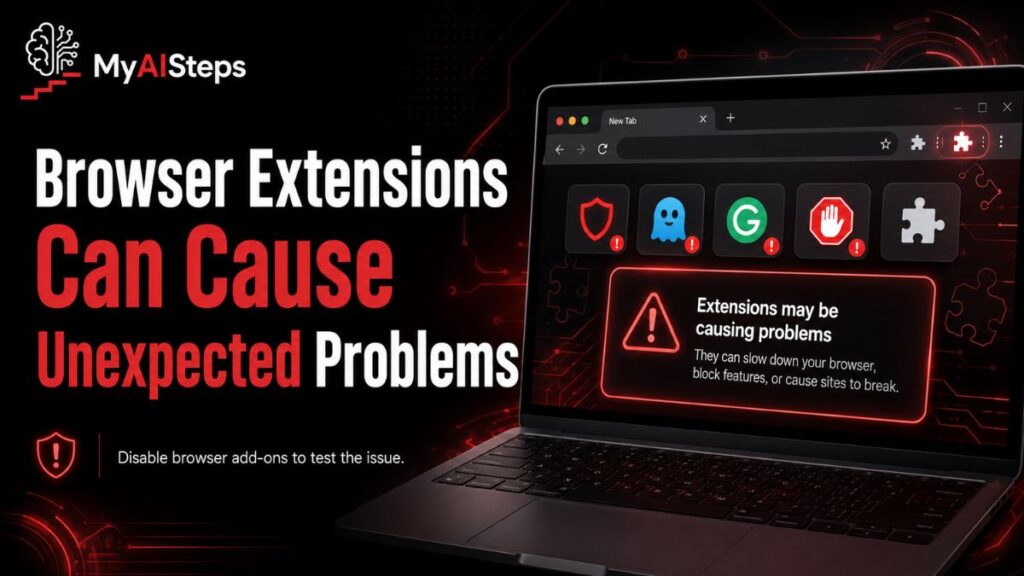
This is one of the more overlooked causes.
Many people have dozens of browser extensions installed without thinking much about them.
Most are harmless.
Some can interfere with websites in unexpected ways.
Extensions related to:
- Privacy protection
- Ad blocking
- Script blocking
- Security filtering
can occasionally disrupt ChatGPT’s connection process.
A quick test is to open ChatGPT in:
- Incognito mode
- Private browsing mode
- A different browser
If the error disappears, an extension may be the culprit.
Clearing Browser Cache Sometimes Helps
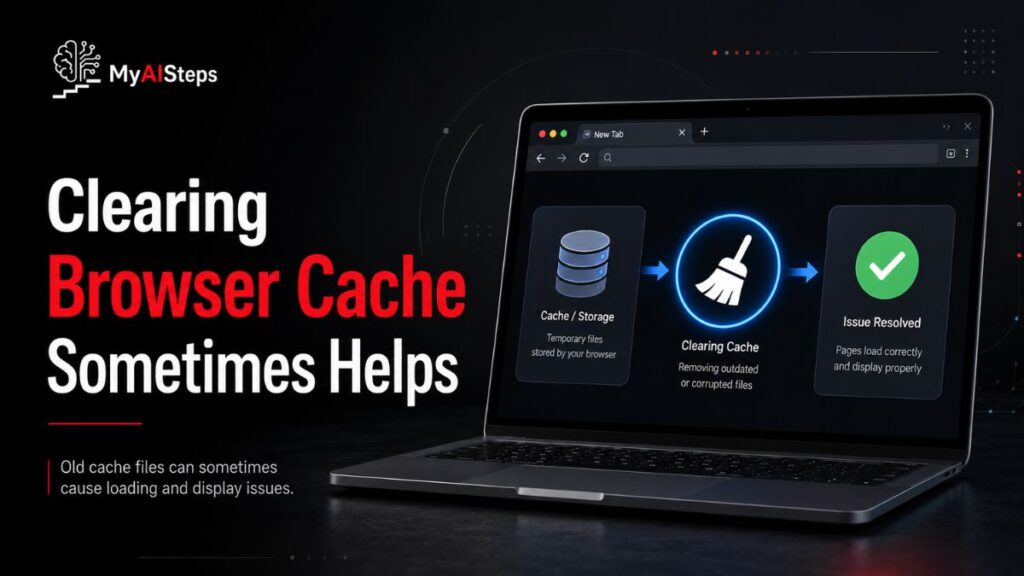
I’ll be honest.
This isn’t the first fix I’d try.
But it has solved the problem for some users.
Over time, browsers store cached files and cookies to improve performance.
Occasionally, outdated or corrupted data can create strange issues with websites.
If simpler fixes haven’t worked, try:
- Clearing browser cache.
- Clearing cookies.
- Closing the browser completely.
- Logging back into ChatGPT.
It only takes a few minutes and can eliminate some hard-to-diagnose problems.
Try a Different Browser or Device

Sometimes the problem isn’t ChatGPT at all.
It’s the environment you’re using to access it.
I once spent nearly twenty minutes refreshing a page, checking my Wi-Fi, and restarting my browser, only to discover that ChatGPT worked perfectly fine in a different browser.
It was a little frustrating, but it quickly narrowed down the problem.
If you’re repeatedly seeing the “Error in message stream” message, try:
- Switching from Chrome to Firefox
- Switching from Edge to Chrome
- Using Incognito mode
- Testing ChatGPT on your phone
- Testing ChatGPT on another computer
If the error disappears on another device, you’ve learned something important.
The issue is likely local rather than server-related.
That makes troubleshooting much easier.
How to Fix the Error in the ChatGPT Mobile App
Mobile users aren’t immune to this problem.
In fact, some people report seeing message stream errors more frequently when switching between Wi-Fi and mobile data.
Think about how often a phone changes networks.
You leave your house.
Mobile data takes over.
Those transitions can occasionally interrupt an active conversation.
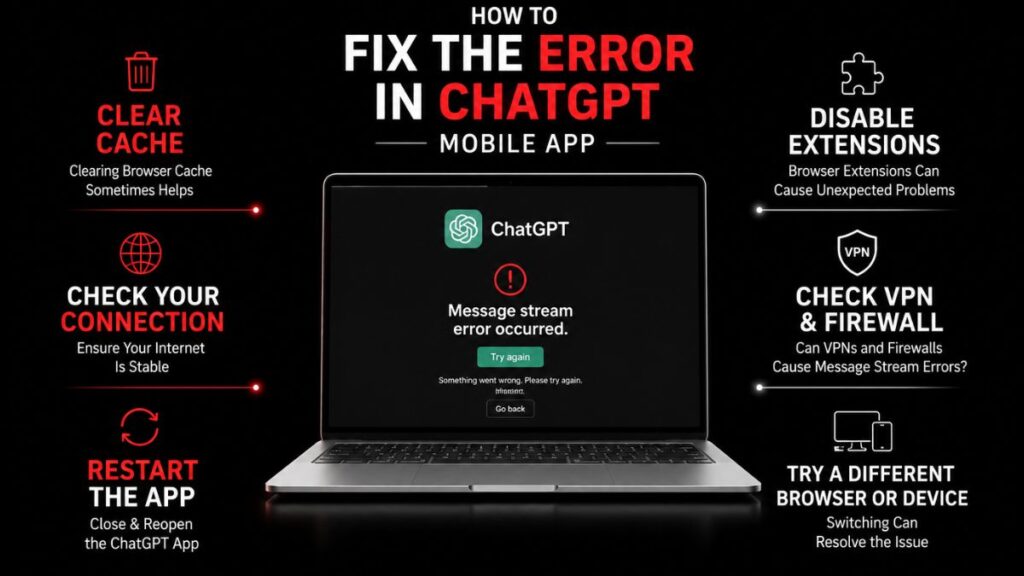
If you’re using the ChatGPT app, try these fixes:
- Close and reopen the app
- Check for app updates
- Switch between Wi-Fi and mobile data
- Restart your device
- Sign out and back in
One thing I’ve noticed is that outdated apps can sometimes behave strangely.
Many users never update their apps until something breaks.
A quick update can solve problems you wouldn’t immediately connect to the error.
Can VPNs and Firewalls Cause Message Stream Errors?
The short answer is yes.
Not always.
But they can.
VPNs are useful for privacy and security, but they also introduce another layer between your device and ChatGPT’s servers.
Most of the time that’s fine.
Occasionally it creates connection issues.
I’ve seen situations where:
- ChatGPT loads slowly
- Responses stop halfway through
- Messages fail to send
- Streaming errors appear repeatedly
If you’re using a VPN and can’t identify the cause, try temporarily disabling it and testing ChatGPT again.
The same idea applies to strict firewall settings, particularly on workplace or school networks.
Some networks place restrictions on traffic that can interfere with certain web applications.
If ChatGPT works perfectly at home but struggles on an office network, the network itself may be part of the problem.
Why the Error Keeps Coming Back
This is usually the question people ask after they’ve fixed the issue once.
The error disappears.
Everything works.
Then it returns a few days later.
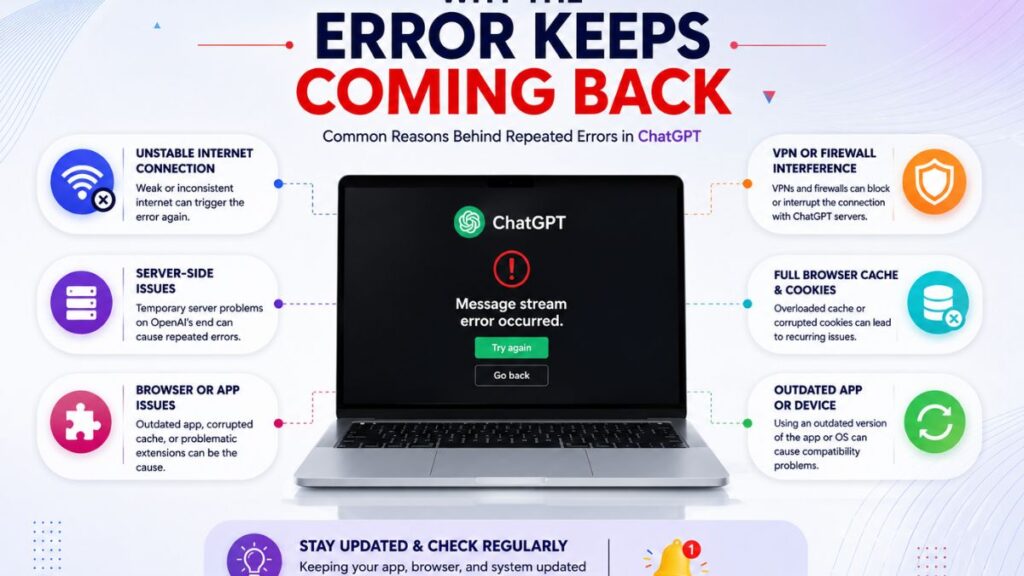
That’s because “Error in message stream” isn’t a single problem.
It’s a symptom.
Think of it like a car’s check-engine light.
The light itself isn’t the issue.
It’s simply telling you that something else needs attention.
In ChatGPT’s case, that “something else” could be:
- Temporary server congestion
- Network instability
- Browser conflicts
- VPN interference
- Long conversations
- App-related issues
That’s why there’s no universal fix.
The best approach is identifying patterns.
Ask yourself:
- Does it happen at a certain time of day?
- Does it happen only on one device?
- Does it happen only when using a VPN?
- Does it happen in very long conversations?
The answers can often reveal the underlying cause.
How to Prevent the Error From Happening Again
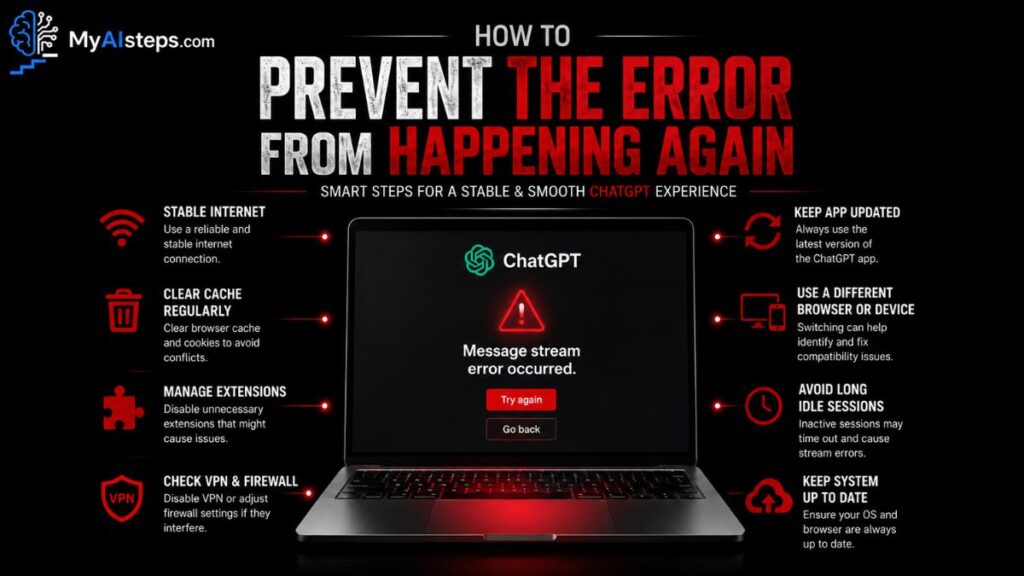
No solution can guarantee you’ll never see the error again.
After all, some causes are outside your control.
However, there are a few habits that can reduce the chances of running into it.
Keep Your Browser Updated
Outdated browsers can create compatibility issues.
Updates often include fixes that improve stability.
Avoid Extremely Long Chat Sessions
If a conversation becomes enormous, consider starting a fresh chat and copying over important context.
Many experienced users do this periodically anyway.
Maintain a Stable Internet Connection
This sounds obvious, but unstable networks remain one of the most common causes of interrupted responses.
Update the ChatGPT App Regularly
If you’re using mobile devices, updates often include bug fixes and performance improvements.
Check Service Status Before Troubleshooting Everything
This one can save a lot of time.
If ChatGPT is experiencing widespread issues, waiting a few minutes may be more productive than changing every setting on your computer.
Final Thoughts
The “Error in message stream” message can be frustrating because it doesn’t clearly explain what’s causing the problem. In most cases, though, the issue is temporary and can often be fixed with a simple refresh, reconnect, or restart. Whether the cause is your internet connection, browser, app, or ChatGPT itself, the troubleshooting steps are usually straightforward once you know where to look. The next time this error appears, you’ll have a much better idea of what to check first instead of wondering what went wrong.
Frequently Asked Questions
Is “Error in Message Stream” a Serious Problem?
Usually not.
In most cases, it’s a temporary connection issue rather than a sign that your account is broken.
Does the Error Mean My Account Is Restricted?
No.
The message is generally related to communication between your device and ChatGPT rather than account restrictions.
Can Server Overload Cause This Error?
Yes.
During periods of heavy usage, server congestion can contribute to streaming interruptions.
Will I Lose My Conversation?
Not necessarily.
Many conversations remain available in your history even after the error appears.
You can often resend the prompt and continue.
Should I Clear My Browser Cache?
It’s worth trying if simpler fixes haven’t worked, although it usually isn’t the first troubleshooting step I’d recommend.
Is the Error More Common on Mobile or Desktop?
It can occur on both.
The underlying cause matters more than the device itself.