
Picture this: you’re halfway through uploading a stack of research PDFs when a message pops up saying you’ve hit your cap for the day. It’s a frustrating moment, especially when you’re racing a deadline and counting on quick document analysis to keep your workflow moving. Many users don’t realize that file uploads aren’t unlimited — they’re governed by quotas tied to your account type, the size of each file, and how much you’ve already uploaded within a rolling time window. This confusion often leads to wasted time, repeated attempts, and unnecessary stress when a project demands heavy document handling. Understanding exactly how the ChatGPT file upload limit per day works can save you from hitting that wall at the worst possible moment.
The good news is that once you understand how the upload system is structured, you can plan your work around it instead of being blindsided by it. This guide breaks down what the daily limit actually means, how the underlying system decides what counts against your quota, and exactly how to upload files step by step without running into avoidable errors. Whether you’re on a free account or a paid subscription, you’ll walk away knowing how to get the most out of every upload allowed. Let’s start with the fundamentals.
What is ChatGPT File Upload Limit Per Day?

The ChatGPT file upload limit per day refers to the maximum amount of file-based content you can attach and process within a rolling 24-hour period. This isn’t a single, fixed number — it’s a combination of three separate constraints working together: how many files you can attach per conversation, how large each individual file can be, and how many total uploads your account tier permits before the system asks you to wait.
Think of it less like a strict daily counter that resets at midnight and more like a usage budget that refills gradually as time passes. A free-tier user uploading several scanned PDFs for a college research paper will typically hit their ceiling faster than someone on a paid plan handling the same volume of documents, because paid accounts are allocated a noticeably larger budget for both file count and processing capacity.
| Account Type | Daily Upload Allowance | Typical Max File Size | Files Per Conversation |
| Free | Limited, refreshes gradually | Several hundred MB | Up to 10 |
| Plus / Team | Considerably higher | Several hundred MB | Up to 10 |
| Enterprise | Highest, often custom | Several hundred MB | Higher, per admin policy |
These figures act as general guidance rather than fixed promises, since allowances are adjusted periodically based on demand and plan updates — so it’s worth confirming your exact quota from your account settings if precision matters for your workflow.
How ChatGPT File Upload System Works

When you attach a document, the system doesn’t just store it — it parses the content, converts readable text and data into tokens, and loads that information into the active conversation’s working memory. This means a single densely packed spreadsheet or a 200-page PDF can consume far more of your quota than five short text files combined, because the limit is tied to processed content, not merely the number of clicks.
Why the Limit Resets Gradually, Not at Midnight
Rather than wiping your usage clean at a set hour, the system operates on a rolling window. As older uploads “age out” of the tracked period, fresh capacity becomes available incrementally. This is why two users uploading the same number of files at different times of day can experience very different remaining allowances.
The platform also supports a defined range of file types — PDFs, Word documents, plain text, CSV and Excel spreadsheets, PowerPoint files, and images for visual analysis. Each format is processed differently: a CSV might be read for structured data analysis, while an image is interpreted visually rather than as text. Mixing several heavy file types in one session accelerates how quickly you approach your cap, which is a common reason users hit limits sooner than expected during research-heavy or data-analysis tasks.
Step-by-Step Guide to Upload Files in ChatGPT

Uploading correctly the first time helps you avoid wasting quota on failed or repeated attempts.
- Open a chat window and locate the attachment icon, usually shown as a paperclip near the message box.
- Select your source — your device storage, or a connected cloud drive if your account supports it.
- Choose the file you need analyzed, keeping format and size limits in mind before confirming.
- Wait for processing to complete; a progress indicator confirms the file has been read successfully.
- Write a clear prompt referencing what you want done with the file — summarized, compared, or analyzed.
- Send the message and review the output before deciding whether additional files are necessary.
- Track remaining capacity if you plan to upload more documents in the same session.
For example, a marketing manager reviewing quarterly performance reports might upload one spreadsheet at a time, extract the needed insights, and only attach the next file once the previous analysis is confirmed accurate — a habit that conserves quota while improving output quality.
Used thoughtfully, this system supports serious document work without unnecessary interruptions, as long as you respect how size, format, and timing influence your daily allowance.
How Many Files Can You Upload Daily in ChatGPT?
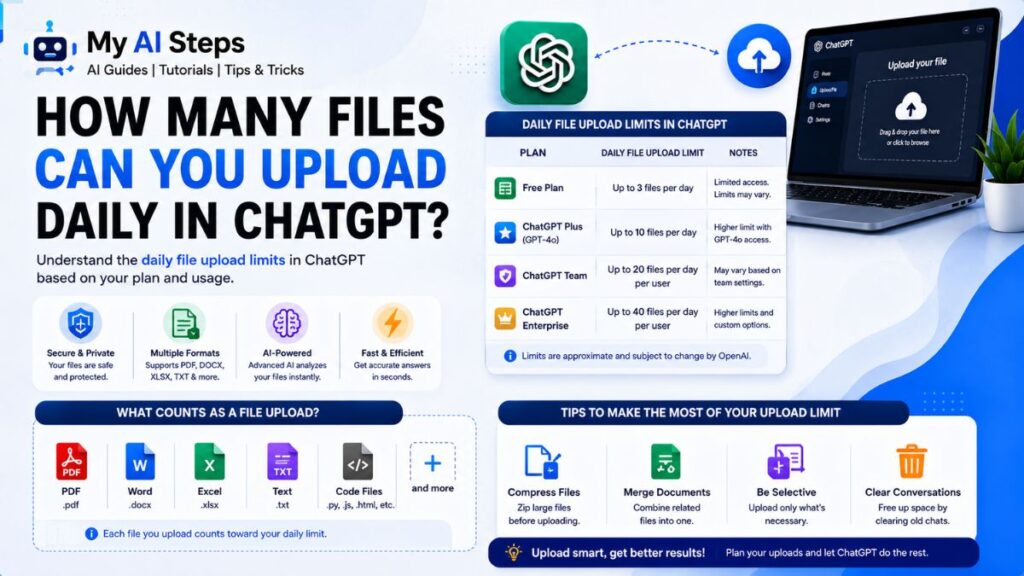
The per-day file allowance isn’t a single static number you can memorize — it shifts depending on three interacting variables: your subscription tier, how heavy each file is to process, and how much of your broader daily usage you’ve already drawn on elsewhere in the conversation.
Here’s the part most people overlook: uploading files doesn’t exist in isolation from your regular chat activity. Each file-containing message pulls from the same general usage pool as a normal text exchange, just with extra processing weight layered on top. So a user who’s already had several long conversations earlier in the day may find their remaining headroom smaller than someone starting fresh on the identical plan. This is exactly why the ChatGPT file upload limit per day feels inconsistent if you’re only counting files and ignoring everything else happening in your account that same day.
Consider a graduate student working on a literature review who uploads eight academic PDFs across two sessions — four in the morning while drafting an outline, four in the evening while compiling citations. If those documents are text-dense and lengthy, they’ll consume noticeably more of the daily allowance than a freelance bookkeeper uploading eight short expense spreadsheets, even though both technically uploaded the same number of files.
The most reliable approach is to treat your account as having a flexible budget rather than a fixed ticket count. Spacing out heavy uploads, prioritizing the documents that matter most for your task, and avoiding redundant re-uploads of the same file all help that budget stretch further across a working session.
File Size Limits and Supported Formats in ChatGPT
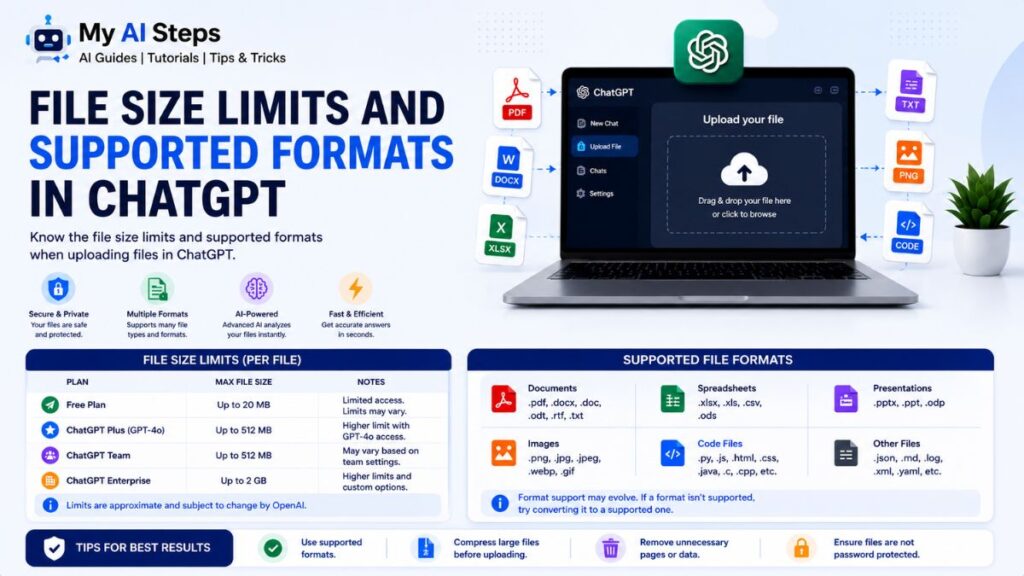
Beyond daily counts, every individual file has to fall within a maximum size threshold, and not every format is treated the same way once it’s inside the system. Text-based documents like PDFs, Word files, and plain text get parsed for their readable content, while spreadsheets such as CSV and Excel files are read with their row-and-column structure intact so calculations and data queries stay accurate. Images, by contrast, are interpreted visually rather than converted into text — which matters if you’re uploading a scanned document that hasn’t been run through OCR, since the system may struggle to “read” it the way it would a digitally typed PDF.
| File Category | Common Formats | Practical Note |
| Documents | PDF, DOCX, TXT | Best when text is selectable, not a scanned image |
| Spreadsheets | CSV, XLSX | Row/column structure preserved for accurate analysis |
| Presentations | PPTX | Slide text and notes extracted, not visual design |
| Images | JPG, PNG | Read visually, not as searchable text |
| Code & Data | JSON, PY, MD | Useful for technical review and debugging |
A small business owner uploading a 40-page scanned lease agreement will often notice weaker results compared to uploading a digitally generated PDF of the same length, simply because scanned pages rely on image recognition rather than direct text extraction. In situations like this, running the document through an OCR tool beforehand, or splitting an oversized file into smaller sections, usually produces faster and more accurate results.
Why ChatGPT Has File Upload Restrictions
These restrictions aren’t arbitrary — they exist to keep the experience stable and fair for everyone using the platform at the same time. Processing a large document takes real computing resources: the file has to be parsed, converted into a format the system can interpret, and held in active memory for the length of the conversation. Without sensible caps, a handful of users uploading massive files back-to-back could slow down response times for thousands of others sharing the same infrastructure.
There’s a security angle here too. Uploaded files are checked and processed in controlled ways to reduce the risk of malformed or oversized content disrupting the system, which indirectly protects every user’s session from instability caused by someone else’s upload. Limiting file count and size also discourages misuse, such as attempting to extract excessive amounts of data in a single sitting or push past intended usage boundaries.
Think of it the way a library manages a high-demand scanning station: if one visitor could scan unlimited boxes of documents all day, the line behind them would never move. A queue limit doesn’t exist to punish any single user — it exists so the resource stays usable and responsive for everyone relying on it. Seen this way, the cap is less a restriction and more a fairness mechanism, balancing individual productivity against collective performance.
What Happens When You Reach the Upload Limit?
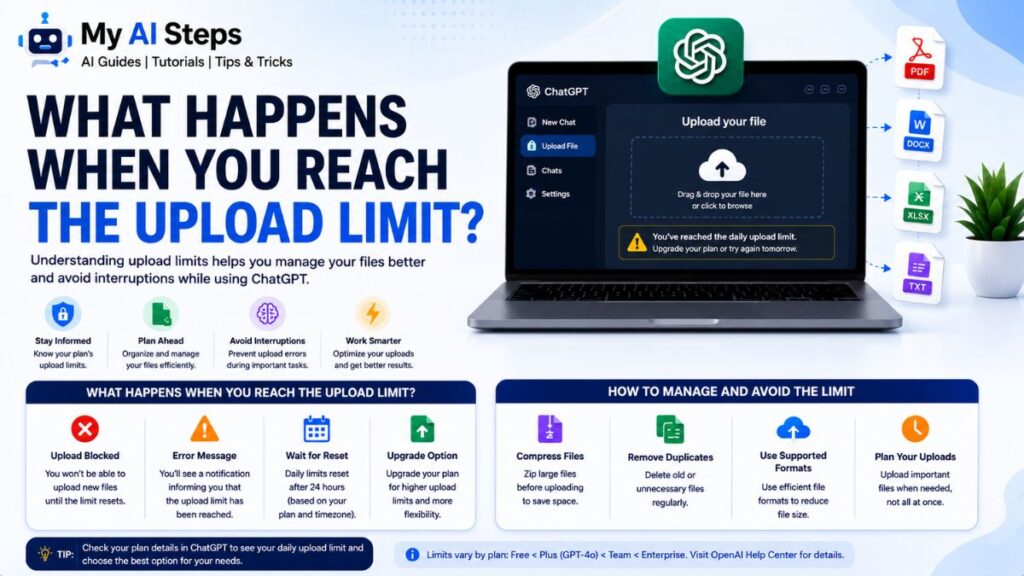
Once you hit your allowance, the system won’t simply fail silently — you’ll typically see a notice indicating you’ve reached your current limit, along with an idea of when capacity becomes available again. Since the limit operates on a rolling basis rather than resetting at a fixed hour, the wait is often shorter than users initially assume, sometimes just a matter of hours rather than a full day.
In the meantime, there are practical ways to keep working without losing momentum. You can shift to discussing content you’ve already uploaded — asking follow-up questions, requesting deeper analysis, or refining summaries — since this doesn’t require a fresh upload. Breaking a large task into priority order also helps: uploading your most critical documents first ensures the important work gets done even if a lower-priority file has to wait for the next available window.
A project manager compiling a competitive analysis from a dozen vendor PDFs might hit the cap halfway through. Rather than stalling the entire project, they can finish analyzing the documents already uploaded, draft preliminary notes, and queue the remaining files for the next session — turning what feels like an interruption into a natural checkpoint instead of a dead stop.
Common Upload Errors While Uploading Files
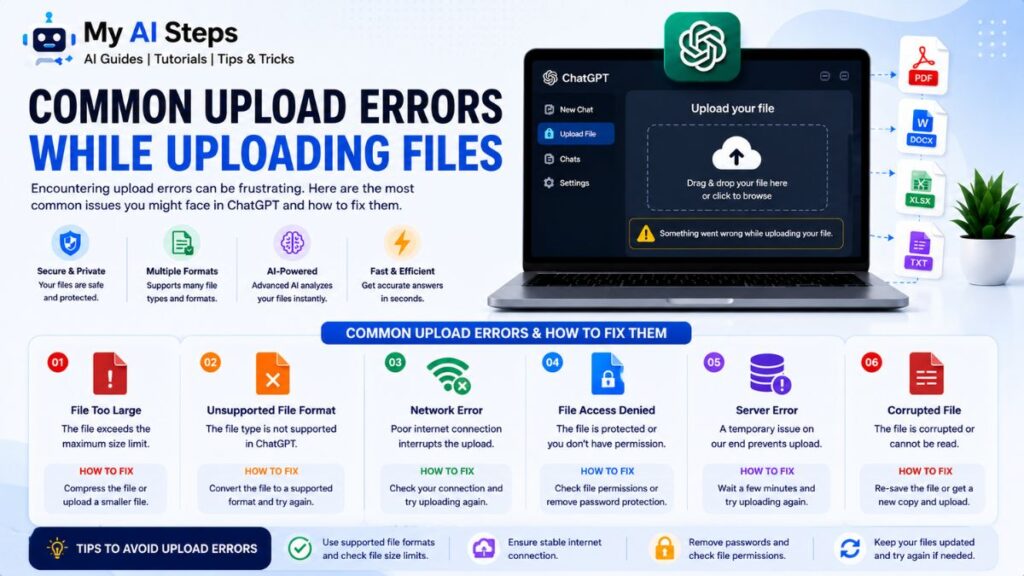
If you’ve ever tried to upload a file and watched it fail for no obvious reason, you’re not alone. Upload errors happen far more often than people realize, and most of them come down to a handful of repeating causes. Once you know what these are, spotting and solving them becomes a lot easier.
1. File size is too large This is probably the most common issue. Every platform sets a maximum file size, and if your document, image, or video crosses that limit, the upload simply won’t go through. For example, trying to upload a 60MB PDF full of high-resolution scanned pages will often fail if the limit is set at 25MB or 50MB.
2. Unsupported file format Some platforms only accept specific file types like PDF, DOCX, CSV, JPG, or PNG. If you try uploading a file in a format that isn’t on the approved list, such as a RAW image file or an obscure file extension, the system will reject it instantly.
3. Weak or unstable internet connection A slow or dropping connection can interrupt the upload halfway through. This often shows up as the progress bar getting stuck or the upload timing out before it completes.
4. Server busy or temporary downtime Sometimes the issue isn’t on your end at all. If too many people are uploading files at the same time, or the server is undergoing maintenance, uploads can fail or load very slowly.
5. Corrupted or incomplete files If a file got damaged during download, transfer, or saving, it may upload partially or not at all. This is common with files copied from external drives or shared through messaging apps that compress data.
6. Browser cache and cookies issues An overloaded browser cache can sometimes block uploads from processing correctly. This is more common than people expect, especially if you haven’t cleared your browser data in a while.
7. Special characters or long file names File names with symbols like #, %, &, or extremely long names can confuse some upload systems, leading to an error even though the file itself is perfectly fine.
Here’s a quick summary table to make these easier to recognize:
| Error Type | Likely Cause | Quick Fix |
| File too large | Exceeds platform’s size limit | Compress or split the file |
| Unsupported format | Wrong file extension | Convert to an accepted format |
| Upload stuck/timing out | Weak internet connection | Switch network or reconnect |
| Server error | Platform overload or downtime | Wait a few minutes and retry |
| File won’t open after upload | Corrupted file | Re-download or re-save the file |
| Random upload failure | Browser cache issue | Clear cache and cookies |
| “Invalid file name” error | Special characters in file name | Rename file with simple text |
Recognizing which category your problem falls into is the first real step toward fixing it, which leads us to the next part.
How to Fix ChatGPT File Upload Problems
Once you’ve identified what’s causing the error, fixing it is usually quicker than people expect. Most upload problems can be solved with a few simple checks rather than any technical expertise.
Step 1: Check the file size first Before doing anything else, look at how big your file is. If it’s larger than what’s typically allowed (most platforms cap uploads somewhere between 10MB and 100MB depending on the file type), you’ll need to reduce it. Tools like online PDF compressors or basic image resizers can shrink a file significantly without ruining its quality.
Step 2: Confirm the file format is supported Double-check that you’re using a format the platform actually accepts. If you’re uploading a Pages document but the system only takes DOCX or PDF, convert it first. Most operating systems let you “Save As” or “Export” into a different format in just a couple of clicks.
Step 3: Test your internet connection Switch from mobile data to Wi-Fi, or vice versa, and try the upload again. If you’re on a shared or public network, moving to a more stable connection often resolves stuck or failed uploads immediately.
Step 4: Refresh and retry Sometimes the simplest fix works best. Refresh the page, restart the app, or even restart your device. This clears any temporary glitches that may be blocking the upload process.
Step 5: Clear your browser cache If you’re uploading through a web browser, go into your browser settings and clear the cache and cookies for that site. This removes outdated data that might be interfering with the upload function.
Step 6: Rename the file If your file name has unusual symbols, emojis, or is unusually long, rename it using plain letters, numbers, and underscores. A name like “Report_Final_2026.pdf” is far safer than “Report!! (FINAL)@@.pdf”.
Step 7: Try a different browser or device If nothing else works, switch browsers (for example, from Chrome to Firefox) or try uploading from a different device altogether. This helps you figure out whether the problem is with the file itself or with your current setup.
Step 8: Re-save or repair the file If you suspect the file is corrupted, open it in its original program and save a fresh copy. This often fixes hidden file errors that aren’t visible just by looking at the file.
Step 9: Wait and try again later If the issue seems to be on the platform’s side, such as a server error message, simply waiting 10 to 15 minutes before trying again often does the trick, especially during high-traffic periods.
Following these steps in order, rather than jumping around randomly, saves time and usually resolves the issue within the first few attempts.
Best Tips to Avoid File Upload Limit Issues
Fixing upload errors after they happen is useful, but preventing them in the first place is even better. A few small habits can save you a lot of frustration down the line.
Know the size limit before you start Before uploading anything important, take a quick look at the platform’s file size guidelines. Knowing the limit in advance means you can prepare your file properly instead of running into a wall halfway through.
Compress files before uploading Large images, videos, and PDFs can almost always be compressed without major quality loss. For instance, a 40MB image straight from a professional camera can often be reduced to under 5MB using basic compression tools, with barely any visible difference.
Stick to commonly accepted formats Whenever possible, use widely supported formats like PDF, JPG, PNG, DOCX, and CSV. These are accepted almost everywhere and rarely cause compatibility issues.
Upload one file at a time for large batches If you need to upload several files, doing them one at a time, or in small groups, is usually more reliable than dumping everything at once. This reduces strain on both your connection and the server.
Keep a stable internet connection A consistent, reasonably fast connection makes a bigger difference than people realize. If you frequently upload large files, it’s worth using Wi-Fi over mobile data whenever you have the option.
Use simple, clean file names Naming files with plain text, short titles, and no special characters avoids a whole category of upload errors before they even start.
Keep your browser and apps updated Outdated browsers or apps sometimes struggle with newer upload protocols. Regular updates fix bugs and improve compatibility, reducing the chances of random failures.
Use cloud storage links for very large files If a file is genuinely too large to upload directly, consider uploading it to a cloud storage service like Google Drive or Dropbox first, then sharing the link instead. This sidesteps file size restrictions entirely.
Split large documents into parts For lengthy reports or large datasets, breaking them into smaller, logically divided files (such as Part 1, Part 2, Part 3) makes them easier to upload and often easier to review too.
Building these habits into your routine means fewer surprises and a much smoother experience every time you need to upload something important.
Conclusion
File upload errors are usually caused by a small set of common issues, such as oversized files, unsupported formats, weak internet connections, or simple naming problems. Once you understand what typically goes wrong, fixing it becomes a quick and manageable process rather than a frustrating guessing game. From compressing files to renaming them properly, most solutions only take a few minutes to apply. With a bit of preparation, these errors become far less frequent over time.
Staying ahead of upload limits is mostly about good habits rather than technical skill. Checking file size, using supported formats, and keeping a stable connection go a long way in preventing problems before they start. With these simple practices in place, uploading files can become a smooth and stress-free part of your daily routine.
FAQs
Why does my file fail to upload even though it’s not that large?
It could be due to an unsupported file format, a weak internet connection, or temporary server issues rather than the file size itself.
What is the safest file format to use for uploads?
PDF, JPG, PNG, and DOCX are widely accepted formats that rarely cause compatibility problems.
How can I reduce the size of a large file before uploading?
You can use free online compression tools for PDFs and images, or export the file at a lower resolution or quality setting.
Does a slow internet connection really affect file uploads?
Yes, a weak or unstable connection is one of the most common reasons uploads get stuck or fail midway.
Can special characters in a file name cause upload errors?
Yes, symbols like #, %, or & in a file name can confuse some systems and trigger upload errors.
What should I do if the upload server seems to be down?
Wait about 10 to 15 minutes and try again, since temporary server overloads usually resolve on their own.
Is it better to upload multiple files together or one at a time?
Uploading one file at a time, or in small batches, is generally more reliable than uploading many large files all at once.