
ChatGPT has become a daily tool for millions of people — students, developers, writers, and professionals all rely on it to get work done. But like any online platform, it runs into problems sometimes. You might hit an error message out of nowhere, find yourself stuck on a loading screen, or notice that responses have stopped generating altogether. When that happens, knowing the right steps to report the problem can save you a lot of frustration.
The process isn’t complicated, but it’s not always obvious — especially if you’re new to dealing with technical issues on web-based AI tools. This guide walks you through exactly what counts as a reportable issue, how to spot one early, and where to start before reaching out to OpenAI’s support team directly.
What Is Considered a ChatGPT Service Issue?
Not every hiccup with ChatGPT is a service issue worth reporting. A slow response could be your internet connection. A blank page might be a stale browser cache. That’s why it helps to understand what actually qualifies before assuming something is broken on OpenAI’s end.
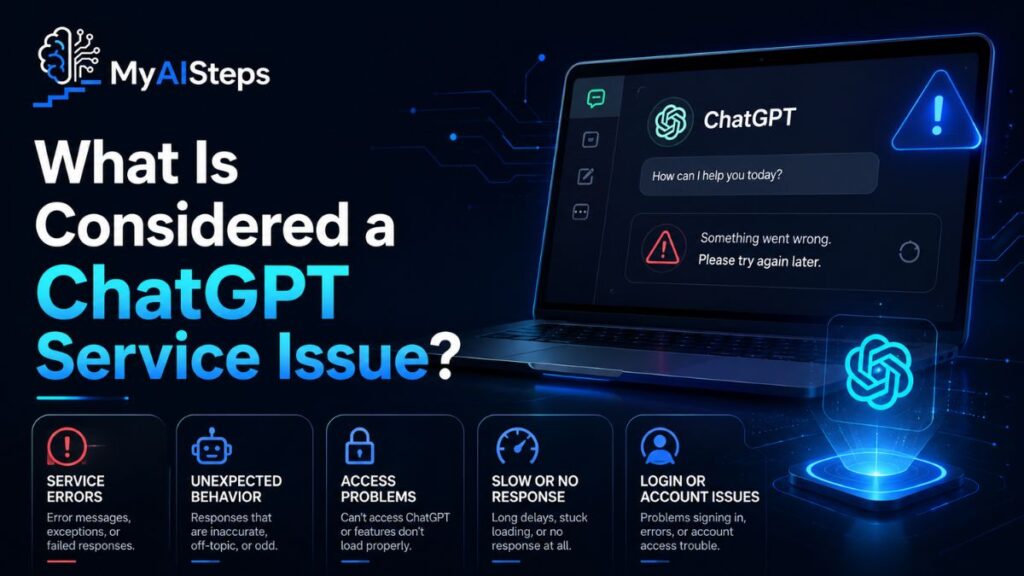
A genuine service issue usually involves a problem with the platform itself — the servers, the API, or the core infrastructure. Some clear examples include:
- ChatGPT is completely down and no one can access it
- The site loads but conversations won’t start or generate responses
- Your account won’t log in even though your credentials are correct
- API requests are failing for developers using GPT-4 or other OpenAI models
- Paid Plus features like Advanced Data Analysis, voice mode, or web browsing stop working unexpectedly
There’s also a category of issues tied to specific features. If you’re on a GPT-4 conversation and the model silently switches to GPT-3.5 without any explanation, or file uploads stop accepting documents even though they worked an hour ago — those count too.
A practical way to think about it: if the same problem shows up across multiple browsers, different devices, or even separate user accounts, it’s most likely a platform-level issue. If it only happens in one browser on one device, start there first before filing a report.
Common Signs That ChatGPT Is Experiencing a Problem
Some service problems are hard to miss. The page won’t load, or you get a server-side error that makes it obvious something is wrong. Others are subtler — and people often spend time troubleshooting their own setup when the real issue is with ChatGPT itself.
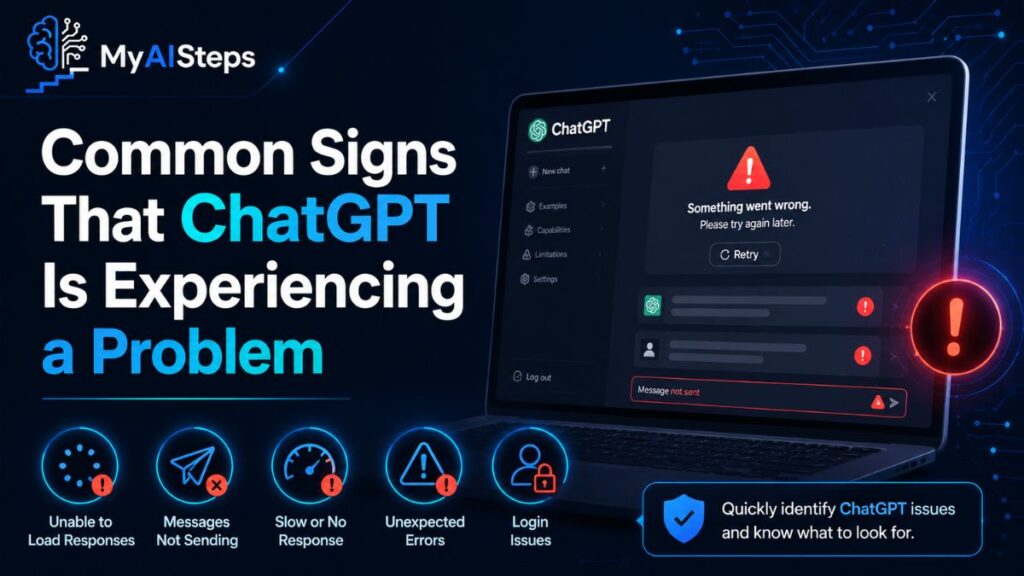
Here are the most common signs that the platform is having trouble:
Error messages mid-conversation.
You’re typing back and forth normally, and then a red alert appears: “Something went wrong” or “Unable to generate a response.” This typically happens when the model hits a processing error on the backend — it’s not your prompt that caused it.
Login loops.
You enter your email and password, hit sign in, and the page refreshes right back to the login screen. This usually points to an authentication problem on OpenAI’s servers, not a wrong password.
Stalled or frozen responses.
ChatGPT starts typing and then just stops. The blinking cursor sits there for minutes with no output. Occasional lag is normal, but if this repeats consistently across multiple prompts, it’s a sign of server strain or an active incident.
Blank or broken interface.
The page loads but your conversation history has disappeared, the sidebar is empty, or the input box doesn’t appear at all. These visual failures often come with underlying backend problems.
API error codes for developers.
If you’re building with the OpenAI API and start getting unexpected 500-level responses or unusual rate limit errors, it’s worth checking before you dig into your own code.
Pay attention to when the issue started, too. If you search online and find other users reporting the same problem at the same time, that’s a strong signal it’s not isolated to your account.
Check the ChatGPT Status Page Before Reporting
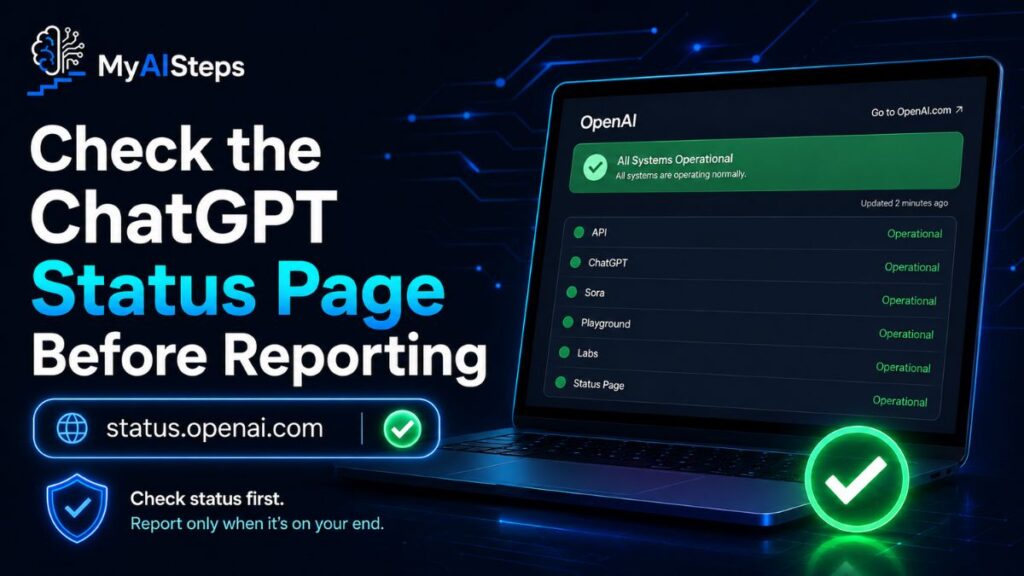
Before filing any kind of support request, the first place to go is status.openai.com. This is OpenAI’s official system status page, and it gives you a live view of what’s working and what isn’t across all their services.
The page is laid out simply — ChatGPT, the API, and individual features each have their own indicator. You’ll see labels like “Operational,” “Degraded Performance,” or “Partial Outage.” When there’s an active incident, OpenAI typically posts updates there with details about what’s affected and where the investigation stands.
Checking this page first is a smart move before doing anything else. If a known outage is already listed, submitting another report won’t speed up the fix — it just creates extra tickets. But if the status page shows everything is fine while you’re still experiencing problems, that’s actually useful context. It tells OpenAI the issue may be specific to your account, location, or subscription tier.
Don’t skip the incident history section at the bottom of the page. It logs past outages, how long they lasted, and brief explanations of what went wrong. It’s a genuinely helpful reference if you’ve been noticing a pattern of recurring issues over days or weeks.
How to Report a ChatGPT Service Issue Through the Help Center
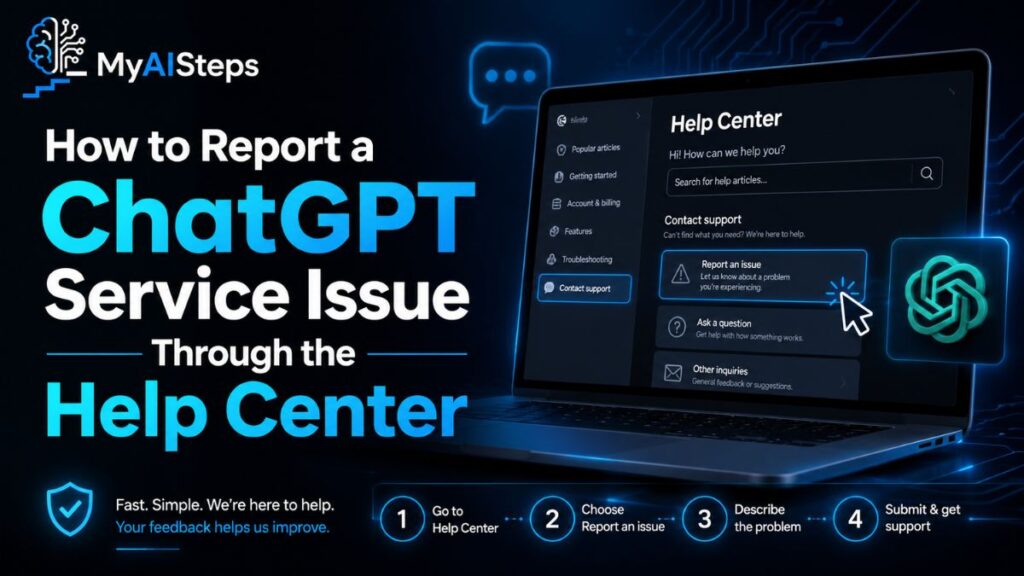
If the status page shows no active problems but the issue is still happening on your end, the next step is reaching out directly through OpenAI’s Help Center.
Go to help.openai.com and click the chat icon in the bottom-right corner. This opens a support widget where you can either search for existing answers or start a conversation with the support team. For account-related or service-related problems, you’ll usually want to select “ChatGPT” as the product and then choose the option that best matches your situation — something like “I’m having trouble using ChatGPT” or “Something isn’t working correctly.”
If you’re logged into your ChatGPT account when you visit the Help Center, the system may pull your account details automatically. That helps the support team look into your specific situation faster without asking a bunch of back-and-forth questions.
One thing to know: response times vary. Free plan users typically go through an email-based support flow with longer wait times. ChatGPT Plus subscribers usually get faster responses. If you’re on a Team or Enterprise plan, there’s typically a dedicated support path with higher priority.
Avoid sending the same report multiple times. It doesn’t speed anything up and can actually make it harder for agents to track your case. Submit once, note the ticket number or confirmation you receive, and wait.
Information to Include When Reporting an Issue
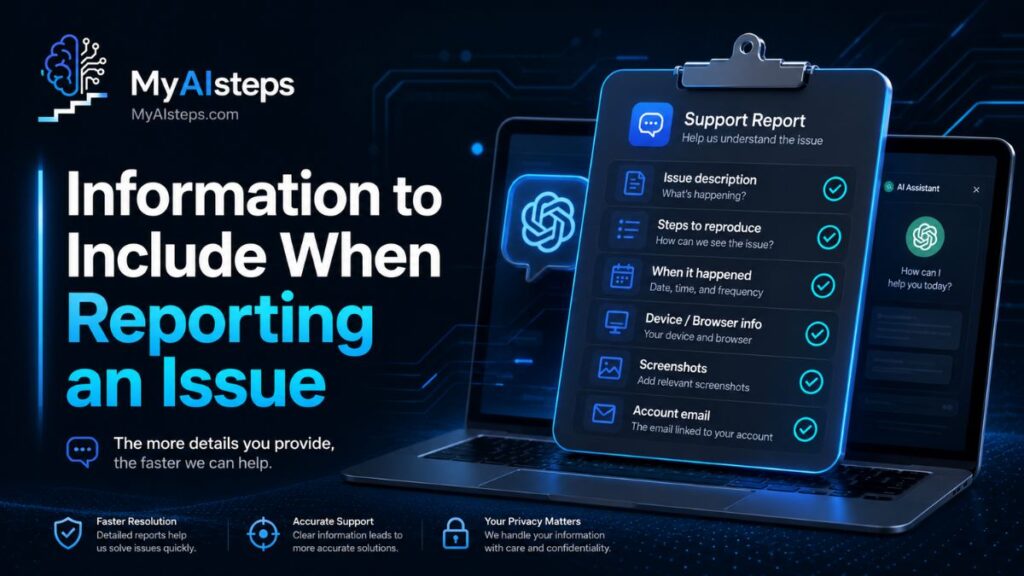
The quality of your report directly affects how fast you get help. Vague descriptions like “ChatGPT isn’t working” give the support team almost nothing to go on. The more specific you are, the better.
Here’s what to include:
A clear description of what happened.
Don’t just say the app stopped working. Describe the exact sequence — what you were doing, what you clicked, and exactly what went wrong. For example: “I started a new conversation, typed a prompt, hit enter, and the response never loaded. It just showed the loading animation for several minutes and then returned an error.”
The error message, word for word.
If you saw an error on screen, copy it exactly or take a screenshot. Error messages often contain codes or phrases that engineers can trace directly to a specific part of the system.
When it started.
Include the date and approximate time, including your timezone. This helps OpenAI match your report to any server logs or incidents from that window.
Your browser and device details.
Chrome on Windows 11? Safari on an iPhone 14? This matters more than people think — some issues only affect specific environments.
What you already tried.
Did you clear your cache? Try a different browser? Log out and back in? Mention it. It saves everyone time by ruling out the basics.
Your account type.
Free, Plus, Team, or Enterprise — each has different backend configurations, and some issues are tier-specific.
Screenshots or screen recordings are genuinely helpful too. Most support forms allow attachments. If you can capture the error happening in real time, include it.
How to Report Problems in the ChatGPT Mobile App
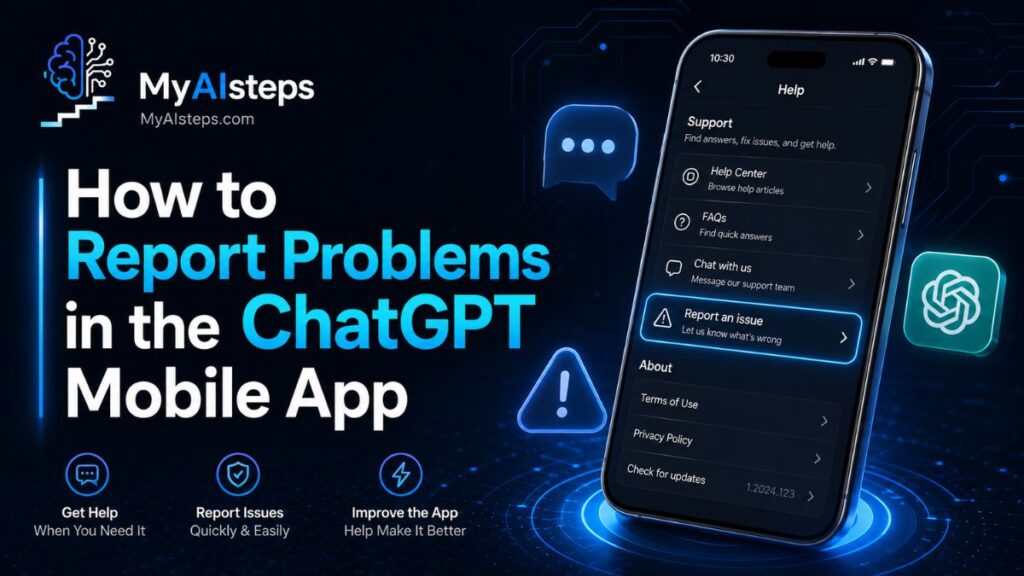
The mobile app — available on both iOS and Android — has its own built-in feedback option, which is actually the most direct route for reporting bugs on mobile.
On iOS, open the app and tap your profile icon in the top-right corner. Scroll down to find the “Help & Support” or “Report a Problem” option. This takes you to a form where you can describe the issue and submit it directly from the app.
On Android, the path is similar — tap the menu or profile icon, look for the settings or help section, and you should find a feedback or report option there.
If you can’t find the in-app option, you can also go to help.openai.com through your mobile browser. The process is the same as on desktop.
One thing that catches people off guard with the mobile app: cached data sometimes causes weird behavior that isn’t actually a platform issue. If something looks broken — conversations not loading, the interface acting strangely — try force-closing the app completely and reopening it. If that doesn’t help, check if there’s an app update waiting in the App Store or Google Play. Outdated app versions sometimes lose compatibility with backend updates OpenAI pushes out.
If the problem persists after updating, then go ahead and report it using the steps above. Include your phone model and operating system version when you do.
Tips to Troubleshoot ChatGPT Issues Before Contacting Support
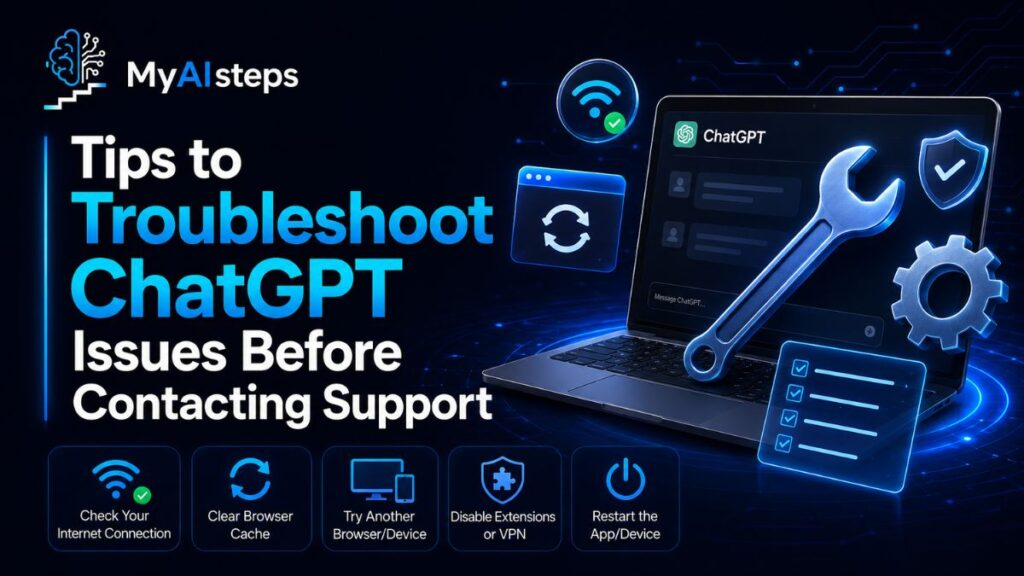
Reaching out to support makes sense once you’ve ruled out the common culprits. A lot of issues that look like service problems turn out to be local ones — fixable in two minutes without waiting on anyone.
Clear your browser cache and cookies.
This is the first thing to try. Stored data can conflict with updated versions of the site and cause all kinds of strange behavior. After clearing, fully refresh the page.
Try a different browser or incognito mode.
If ChatGPT works fine in a private window or a different browser, the issue is likely tied to an extension, a cookie, or your browser profile — not the platform itself.
Disable browser extensions temporarily.
Ad blockers, VPNs, and privacy extensions sometimes interfere with how ChatGPT loads or communicates with OpenAI’s servers. Turn them off one by one to see if that changes anything.
Check your internet connection.
Slow or unstable connections can cause responses to stall or time out. Run a quick speed test or try switching from Wi-Fi to mobile data to compare.
Log out and log back in.
Session tokens expire. Sometimes a fresh login is all it takes to restore access to features that seemed broken.
If none of these steps fix the problem, you’ve done the right groundwork — and when you contact support, you’ll have something concrete to tell them.
How Long Does ChatGPT Support Take to Respond?
This is one of the most common questions people have after submitting a report — and the honest answer is: it depends on your plan and the nature of the issue.
Free users can generally expect a response within a few business days, sometimes longer during periods of high volume. That’s not ideal when something feels urgent, but it’s worth setting that expectation upfront. ChatGPT Plus subscribers tend to get faster replies, often within 24 to 48 hours. Team and Enterprise accounts have access to prioritized support channels, so response times there are usually shorter.
The type of issue matters too. Billing problems tend to get faster attention than general bug reports. Account access issues — like being locked out — are also typically treated with more urgency than feature-related feedback.
If you haven’t heard back after several days, it’s fine to follow up on your existing ticket. Just don’t open a new one for the same problem. Duplicate tickets can slow things down because agents have to figure out which thread to respond to. Stick to one case and reply within it if you need to add information or check on the status.
One practical tip: check your spam or promotions folder after submitting. OpenAI support replies come from a no-reply or automated email address, and those sometimes get filtered out before you see them.
Common Mistakes to Avoid When Reporting an Issue

Most people mean well when they report a problem, but a few common habits make it harder for support teams to help quickly.
Being too vague.
“ChatGPT isn’t working” doesn’t give agents much to work with. Every single report they receive says something similar. The goal is to describe your problem so specifically that someone who wasn’t there can picture exactly what happened.
Reporting before checking the status page.
If there’s an active outage already listed on status.openai.com, filing a new report won’t do anything useful. The engineering team already knows and is working on it. The ticket just creates noise.
Skipping the basic troubleshooting steps.
Support teams will almost always ask whether you tried clearing your cache, switching browsers, or logging out. If you haven’t done those things, your case gets delayed while that back-and-forth happens. Do the basics first, then report.
Not including your account details.
Some people forget that the support agent doesn’t automatically know which plan they’re on, what email they use, or what device they’re working from. If that context isn’t in your report, expect a follow-up asking for it — which adds a day or more to the process.
Sending follow-ups too soon.
Submitting the same complaint three times in one day doesn’t increase priority. It just creates more work. Submit once, note your ticket reference, and wait a reasonable amount of time before following up.
What to Do If Your ChatGPT Issue Is Not Resolved
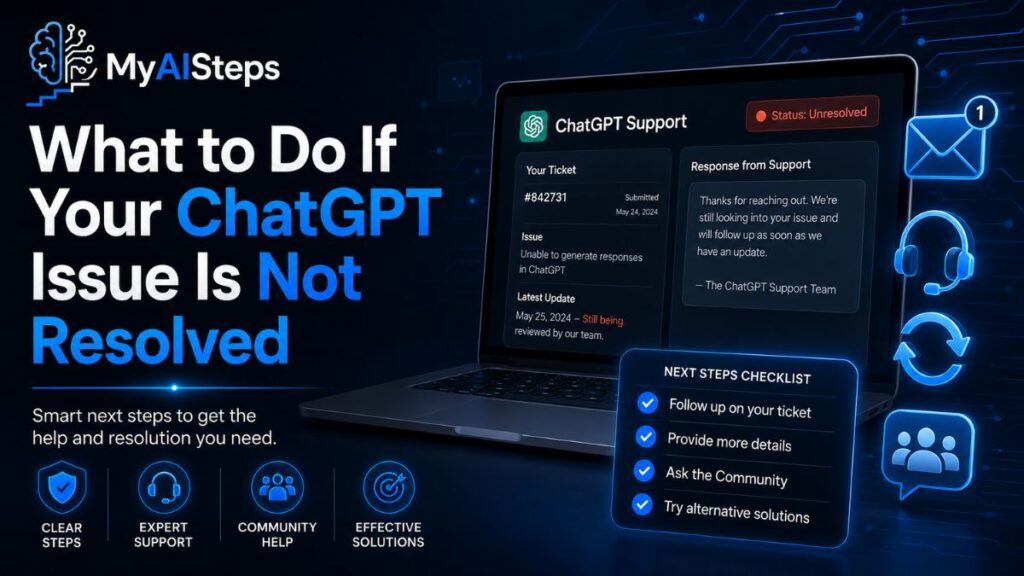
Sometimes support doesn’t fix the problem — or the reply you get doesn’t really address what you described. That’s frustrating, but there are still a few productive paths forward.
First, reply to the same ticket with a clear, polite follow-up. Explain that the issue is still happening and include any new details — especially if the problem has changed or gotten worse. If you have a screen recording or new screenshots, attach them here.
If you’re getting nowhere through the Help Center, the OpenAI Community Forum at community.openai.com is worth checking. It’s an active space where other users, developers, and sometimes OpenAI staff discuss known issues and workarounds. You might find someone who ran into the same problem and already found a fix.
The OpenAI Twitter/X account (@OpenAI) and their status updates on social media can also be useful if something is widespread. They don’t always respond to individual complaints there, but it’s a good place to see if others are experiencing the same thing in real time.
For developers specifically, the OpenAI Developer Forum is a more technical community where API issues and platform bugs often get discussed with more depth. If your problem involves API errors, rate limits, or integration behavior, that’s a better place to look than the general Help Center.
The last resort is disputing a billing charge through your credit card provider — but only do this for genuine billing errors after you’ve contacted support and given them a fair chance to resolve it. It should never be a first move.
Dealing with a broken tool you depend on is genuinely annoying, especially when you’re in the middle of something important. But ChatGPT issues — whether it’s a login failure, a frozen conversation, or an API error — usually have a clear path to resolution if you approach them the right way. Start with the status page, try the basic fixes, then report with enough detail to actually be helpful.
The more specific and organized you are when reaching out, the faster you’ll get a real answer. Most problems do get sorted out. It just takes a little patience and the right steps in the right order.
Frequently Asked Questions
How do I report a ChatGPT service issue?
Go to help.openai.com, click the support chat icon, select ChatGPT as your product, and describe your issue clearly.
Where can I check if ChatGPT is down right now?
Visit status.openai.com for a live view of all ChatGPT and OpenAI service statuses.
How long does OpenAI support take to reply?
Free users may wait several days; Plus users typically hear back within 24 to 48 hours.
Can I report a ChatGPT issue from the mobile app?
Yes, tap your profile icon inside the app and look for the Help or Report a Problem option.
What should I do if ChatGPT support doesn’t resolve my issue?
Follow up on your existing ticket, check the OpenAI Community Forum, or look for related discussions on the developer forum.