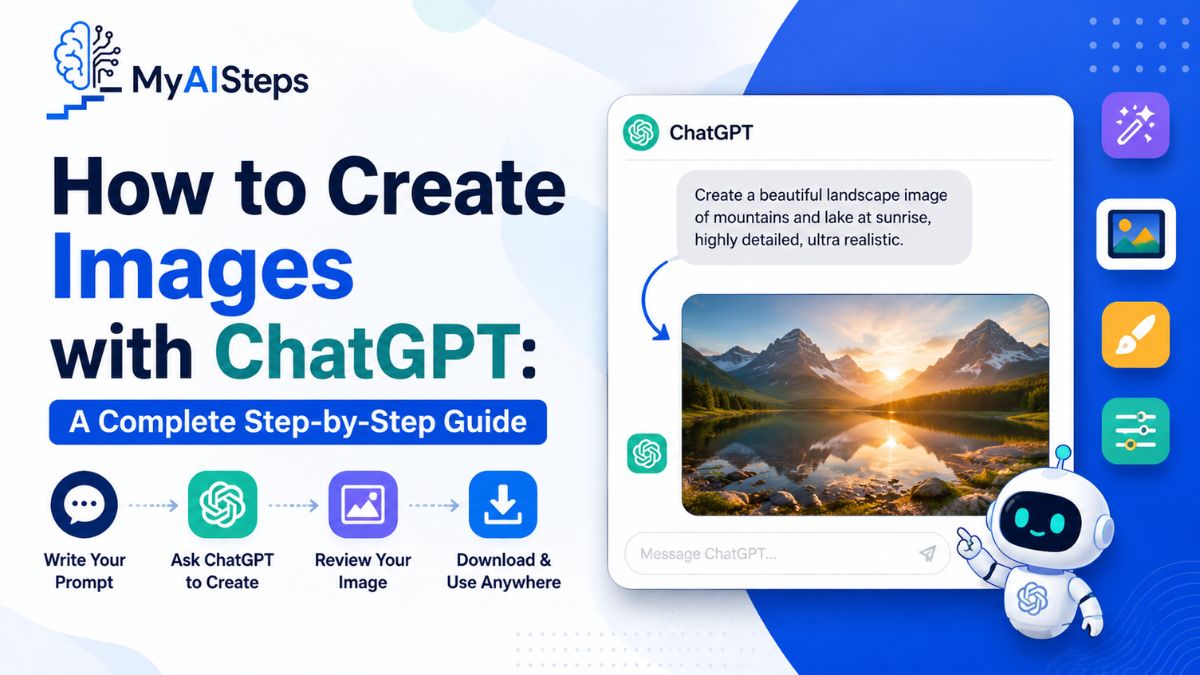
A few years ago, creating a custom image often required hiring a designer or spending hours learning tools like Photoshop. Today, AI image generation makes the process much easier. ChatGPT’s AI image generator allows you to create images simply by describing what you want in natural language. Whether you need a realistic photo, digital artwork, illustration, social media graphic, or concept design, ChatGPT can generate it in seconds—even if you have no artistic or design experience.
In this beginner-friendly guide, you’ll learn how to generate images with ChatGPT, write effective text prompts, improve image quality, edit AI-generated images, and understand the differences between ChatGPT’s available plans. You’ll also see how ChatGPT compares with other popular AI image generators, including DALL·E, so you can decide when it’s the right tool for your creative projects.
What Is ChatGPT’s Image Generator and How Does It Work?
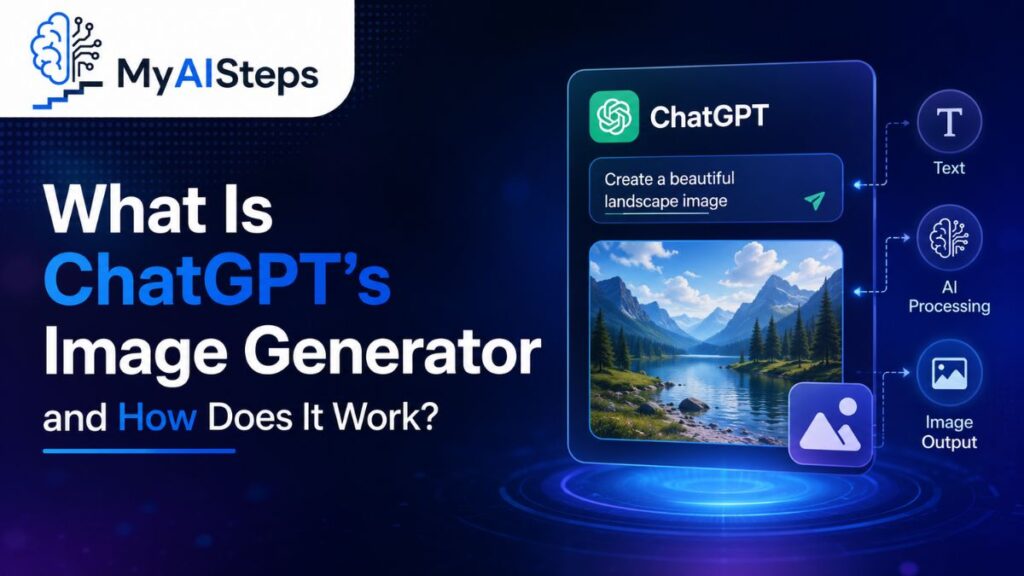
ChatGPT’s image generator is built directly into the chat interface, allowing you to create images simply by describing them in text. Instead of switching to another application, you can generate, refine, and edit images within the same conversation.
The tool can create illustrations, realistic photos, graphics, concept art, product mockups, and more. It also supports image editing, letting you modify existing images, combine multiple images, or continue refining earlier generations without starting over.
One of its biggest strengths is conversational editing. Rather than rewriting an entire prompt, you can simply say things like, “make the background darker” or “replace the chair with a sofa,” and ChatGPT updates the image while preserving the rest of the scene whenever possible.
From DALL·E to Native Image Generation
Image generation inside ChatGPT has evolved considerably.
Initially, ChatGPT relied on DALL·E as a separate image model. Your prompt was interpreted, rewritten behind the scenes, and then sent to DALL·E for generation. While this produced impressive images, the rewritten prompt sometimes caused results to differ from what you originally intended.
Today, image generation is native to ChatGPT. Instead of handing requests to a separate workflow, ChatGPT understands your instructions and generates images directly. This improvement has led to:
- Better instruction following
- More accurate text inside images
- Improved object placement
- More reliable editing
- Fewer unexpected changes between prompt and output
For most users, the experience feels much more natural because everything happens within one continuous conversation.
What “Thinking Mode” Means for Your Images
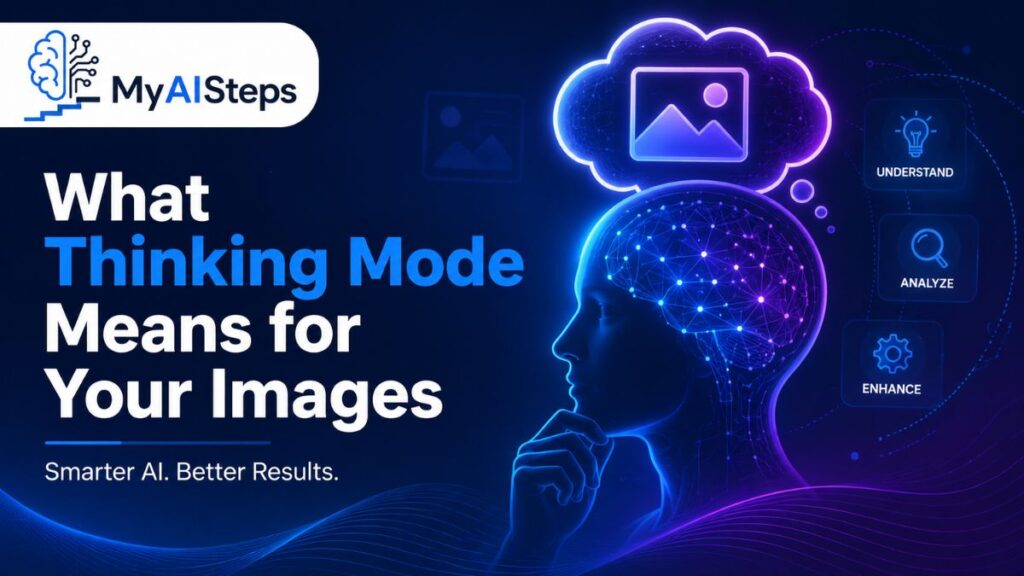
Unlike many AI image generators that mainly respond to keywords, ChatGPT analyzes your request before generating the image. It considers how different elements relate to one another, resolves potential ambiguities, and plans the composition before creating the final result.
This extra reasoning becomes especially valuable for detailed prompts.
For example, asking for “a sunset over the ocean” is relatively straightforward. However, requesting an infographic with multiple labeled sections, specific typography, and several objects arranged in precise locations requires much deeper planning. ChatGPT’s reasoning process helps organize these complex instructions into a more coherent image.
While no AI image generator is perfect, this approach generally produces more consistent results for complicated designs than relying solely on keyword matching.
How to Create Your First Image in ChatGPT (Step-by-Step)
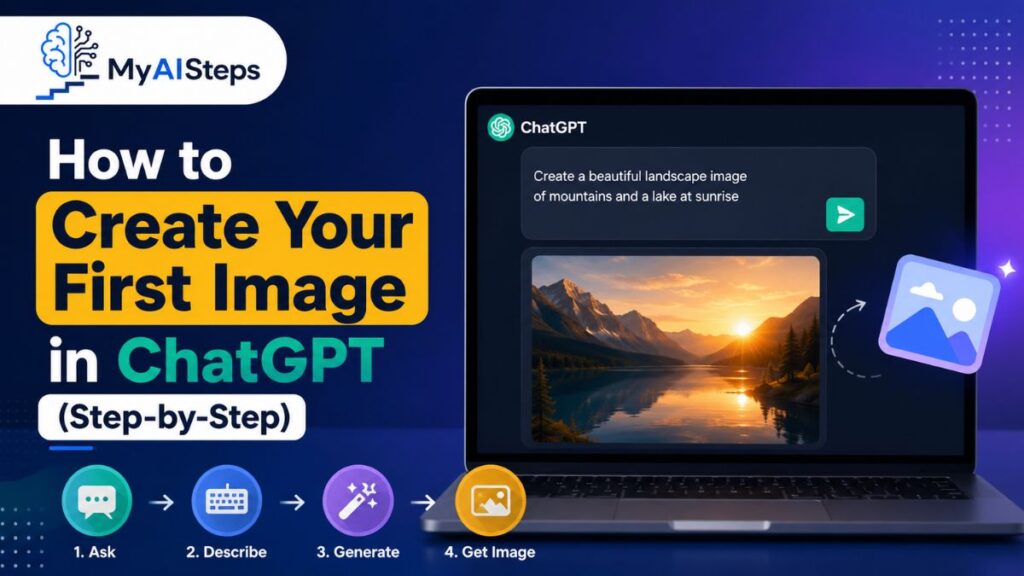
Creating an image with ChatGPT is straightforward. Open a conversation, describe what you want, and wait while the image is generated. Most requests finish within a minute, although highly detailed prompts may take a little longer.
The basic process looks like this:
| Step | What You Do | What Happens |
| 1 | Open a new or existing chat | ChatGPT is ready to receive your request |
| 2 | Describe the image you want | The model analyzes your prompt |
| 3 | Send your message | ChatGPT generates the image |
| 4 | Review the result | Request edits or regenerate if needed |
| 5 | Save the image | Your image remains available in your chat history |
The biggest advantage is convenience. You don’t need separate software or special commands. Simply describe what you want as naturally as you would ask any other question.
The process also encourages experimentation. If the first result isn’t quite right, continue the conversation by requesting changes instead of starting over.
Creating Images on Desktop
Using ChatGPT on a desktop or laptop is the easiest way to create and manage images.
After signing in, open a new conversation or continue an existing one. Type your image request into the chat box exactly as you would ask a normal question. For example, you might request a realistic mountain landscape, a minimalist logo concept, or a product mockup for a coffee mug.
If available in your interface, you can also switch directly to the Images mode before entering your prompt. This isn’t required, but it can make repeated image generation more convenient.
Once your image is ready, you can continue refining it through follow-up prompts without losing the original context.
Creating Images on the ChatGPT Mobile App
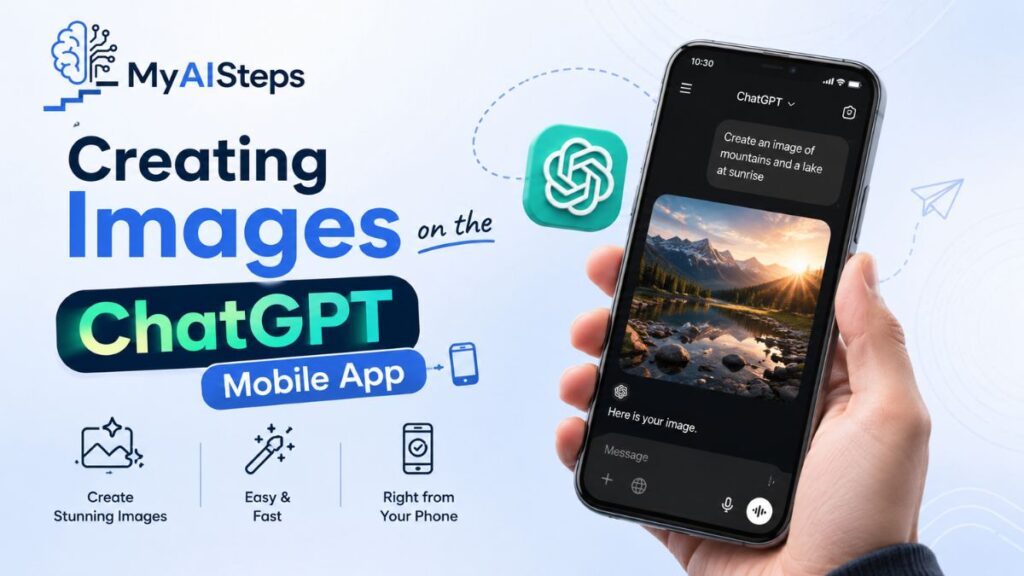
The mobile experience is nearly identical to the desktop version.
Open the ChatGPT app on iOS or Android, start a conversation, and enter your image prompt. Once the image appears, tap it to view it in full size, save it to your device, or continue making edits.
Being able to generate and refine images directly from your phone makes ChatGPT especially useful for creating quick social media graphics, brainstorming ideas while traveling, or producing visuals without needing access to a computer.
Choosing the Right Aspect Ratio and Resolution
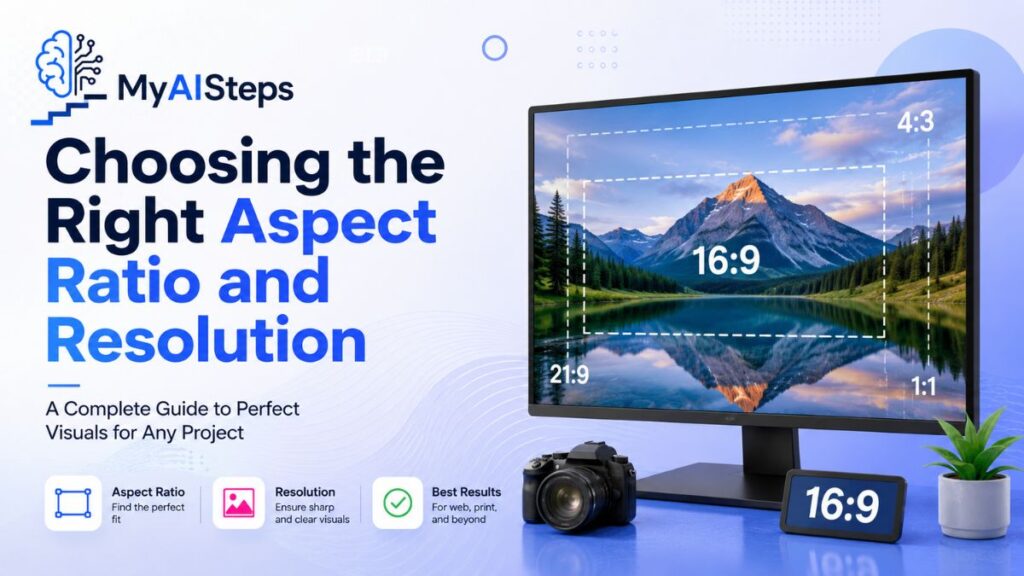
Before generating an image, think about where you plan to use it. Different formats work better for different purposes.
| Use Case | Recommended Format |
| Instagram posts | Square (1:1) |
| Blog headers | Widescreen (16:9) |
| Presentations | Landscape |
| Mobile wallpapers | Portrait |
| Pinterest graphics | Vertical |
You can either choose an available aspect ratio in the interface or mention it directly in your prompt. For example, adding “16:9 landscape” or “portrait format for a phone wallpaper” helps guide the final composition.
Current image models also produce higher-resolution images than earlier versions. Even so, it’s worth checking your image at full size before using it in print or other professional materials, since small imperfections may not be obvious in the preview.
How to Write Prompts That Get Better Results
The quality of your prompt has a bigger impact on the final image than any other factor. Clear, specific instructions reduce guesswork and usually produce better results on the first attempt.
Instead of writing:
“A nice office.”
Try something more descriptive:
“A modern home office with a wooden desk, an open laptop, indoor plants, soft morning sunlight, minimalist Scandinavian design, photographed from eye level.”
The second prompt provides enough detail for ChatGPT to understand both the subject and the overall style.
Structure Your Prompt for Better Results
A practical way to write prompts is to include four key elements:
- Subject: What should appear in the image?
- Style: Realistic, watercolor, cartoon, 3D render, illustration, and so on.
- Composition: Camera angle, framing, object placement, or perspective.
- Lighting: Bright daylight, golden hour, studio lighting, dramatic shadows, soft indoor lighting, etc.
You don’t need to follow a rigid formula every time, but including these details often leads to more accurate and visually appealing images.
Example Prompts
Here are a few examples for common use cases:
Social media graphic
“A flat-style illustration of a laptop and coffee cup on a desk, pastel color palette, square format for Instagram.”
Product mockup
“A white ceramic mug on a marble countertop with soft studio lighting, minimal shadows, professional product photography.”
Personal avatar
“A friendly cartoon portrait of a person with short curly hair, warm colors, simple background, clean illustration style.”
Don’t worry about creating the perfect prompt on your first attempt. Small wording changes often make a noticeable difference, and ChatGPT’s conversational editing makes refining images much easier than starting from scratch every time.
Editing and Refining an Image After It’s Generated
Getting an image that’s close to what you want on the first attempt is common. Getting it exactly right usually takes a few small adjustments, and that’s perfectly normal. One of ChatGPT’s biggest advantages is that you can keep refining the same image through conversation instead of writing a brand-new prompt each time.
For example, I once generated a workspace image for a blog header that looked almost perfect, except the desk lamp was oversized and the background felt too dark. Rather than rewriting the entire prompt, I simply asked ChatGPT to “make the lamp smaller and brighten the room slightly.” The revised version looked much closer to what I had in mind, and it took only one extra prompt.
That’s often faster than starting over from scratch.
Using the Selection Tool for Precise Edits
When you only want to change one part of an image, the selection tool is usually the better option. Highlight the area you want to modify, then describe the change.
This works well for tasks like:
- Replacing one object
- Removing unwanted elements
- Changing clothing colors
- Adding a small detail
- Fixing part of the background
The tool isn’t perfect, though. Sometimes edits extend slightly beyond the selected area, especially around complex edges like hair or overlapping objects. For professional design work, you may still want to make final adjustments in dedicated editing software.
Making Conversational Edits
Not every edit requires selecting part of the image. In many cases, you can simply tell ChatGPT what you’d like to change.
For example:
- “Make the background darker.”
- “Move the text higher.”
- “Add more sunlight.”
- “Replace the coffee cup with a notebook.”
- “Turn this into a watercolor painting.”
Because ChatGPT remembers the previous image, it understands the context without needing the entire prompt again. This conversational workflow makes experimenting with different versions much quicker.
One limitation is character consistency. If you’re creating multiple images featuring the same fictional person, small facial details or clothing may change between generations. Uploading a reference image and describing the important features each time usually produces more consistent results.
ChatGPT Image Generation: Free vs. Plus vs. Pro
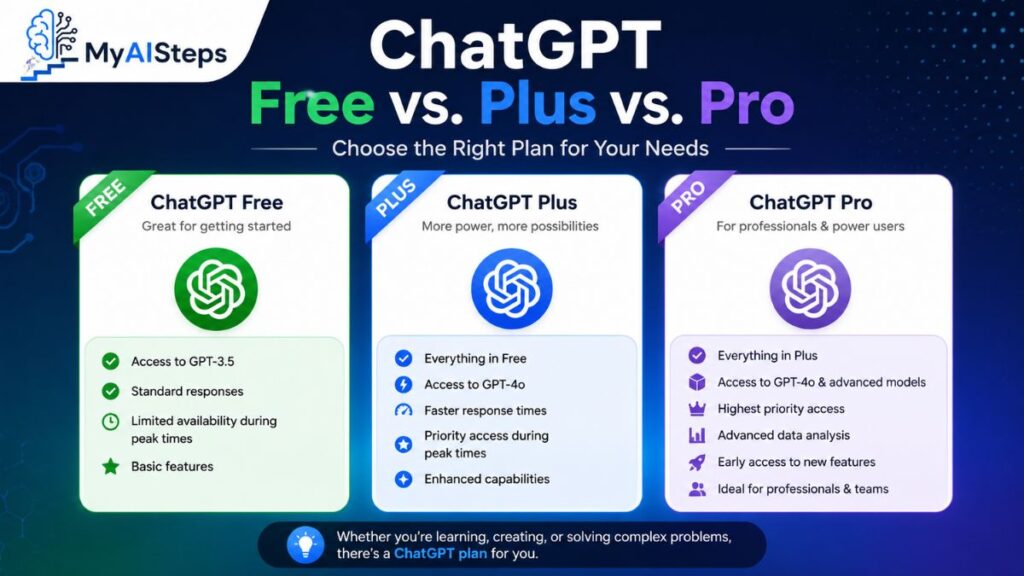
One of the biggest misconceptions is that you need a paid subscription before you can generate images. That’s no longer true.
Free users can create images using the same core model as paid users. The main difference is how many images you can generate before reaching your usage limit.
| Plan | Cost | Typical Image Limit | Best For |
| Free | $0 | Around 2–3 images per day (varies) | Trying the feature and occasional use |
| Plus | $20/month | Roughly 50 images every 3 hours | Regular creators and marketers |
| Team | $25/user/month | Higher shared limits | Collaborative teams |
| Pro | $200/month | Highest available limits | Heavy professional use |
If you only create images occasionally, the free plan is usually enough. However, if you’re generating visuals every day for blog posts, marketing campaigns, or client work, upgrading to Plus can save you from running into daily limits.
Keep in mind that OpenAI occasionally adjusts usage limits depending on system demand, so these numbers may change over time.
Practical Ways People Use ChatGPT Images
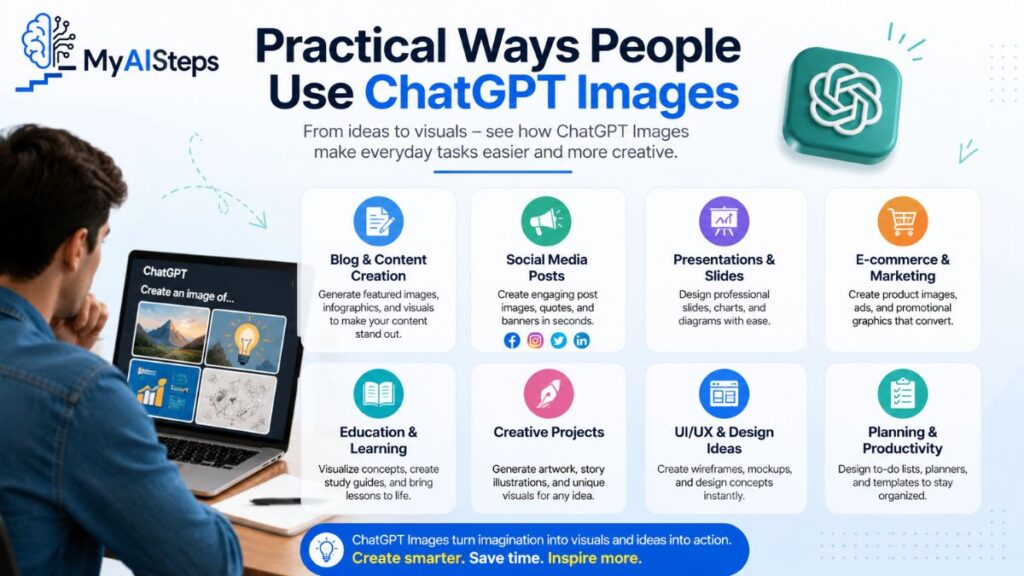
AI-generated images have become useful for much more than creating fun pictures. Individuals, freelancers, and businesses now use them for everyday creative work.
Marketing Graphics and Social Media
Small business owners and content creators often use ChatGPT to generate promotional graphics, quote cards, event announcements, and social media posts.
Instead of searching through stock photo websites, you can describe the exact look you’re after. This makes it much easier to match your brand’s colors, style, and messaging.
If you’re planning a week’s worth of content, you can even ask ChatGPT to keep the same visual style across multiple images for a more consistent feed.
Product Mockups and Business Visuals
Product mockups are another popular use case.
Rather than organizing a professional photo shoot before a product launches, you can create concept images that show how an item might look in different settings.
This is especially useful for:
- E-commerce product previews
- Packaging concepts
- Website banners
- Blog illustrations
- Presentation graphics
While AI-generated mockups shouldn’t replace professional photography for every situation, they’re excellent for brainstorming ideas and creating early marketing materials.
Personal Projects
Many people simply use ChatGPT for creative fun.
Popular projects include:
- Cartoon portraits
- Personalized birthday gifts
- Phone wallpapers
- Book cover concepts
- Fantasy characters
- Custom avatars
One trend that spread quickly online was turning ordinary selfies into collectible action figure packaging. It’s a great example of how a simple prompt can become something surprisingly creative with very little effort.
ChatGPT vs. Midjourney vs. DALL·E: Which One Should You Choose?
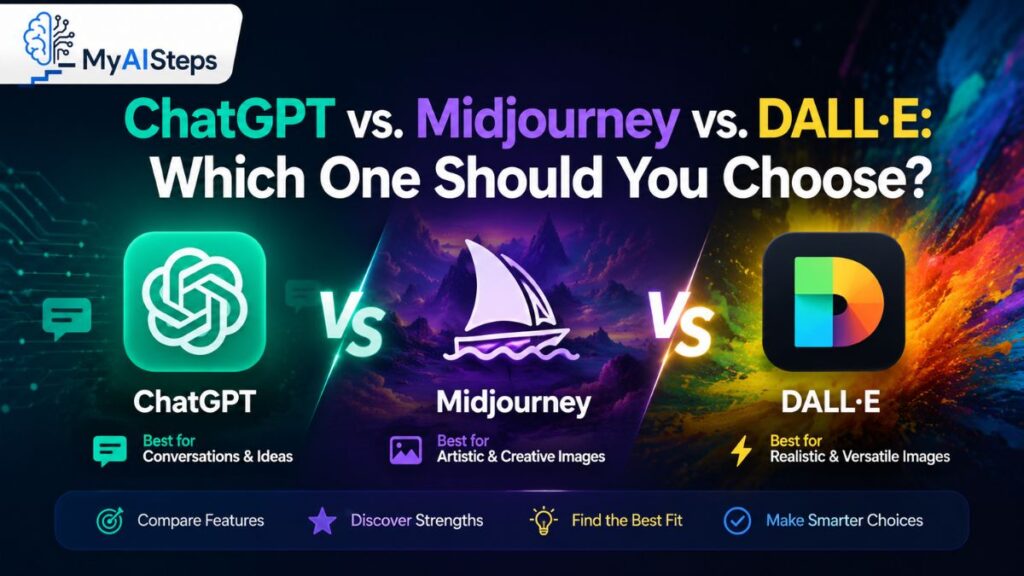
There’s no single “best” AI image generator. The right choice depends on what you’re trying to create.
| Tool | Best At | Best For |
| ChatGPT | Following detailed instructions and conversational editing | Marketing graphics, mockups, blog images |
| Midjourney | Artistic visuals and rich textures | Concept art, illustrations, creative projects |
| DALL·E (standalone) | Fast image generation | Simple one-off images |
| Stable Diffusion | Full customization | Advanced users and developers |
If you frequently revise images or need text to appear correctly inside them, ChatGPT is usually the better option because you can keep refining the same image through conversation.
If your priority is highly artistic, cinematic artwork, many designers still prefer Midjourney for its distinctive visual style.
Meanwhile, Stable Diffusion offers the greatest flexibility for users who want complete control and don’t mind a steeper learning curve.
Limitations and Common Mistakes to Avoid
As impressive as ChatGPT’s image generator has become, it still has limitations. Understanding them helps set realistic expectations and saves time.
Content Policy Restrictions
ChatGPT follows strict safety policies. It won’t generate certain types of images, including:
- Explicit adult content
- Graphic violence
- Harmful or misleading deepfakes
- Images that violate privacy
- Certain requests involving real public figures
If your prompt is rejected, rewriting it with a different approach often solves the problem. Focus on describing the scene or artistic style instead of restricted subjects.
Character Consistency
Creating the same character across multiple images remains one of AI’s biggest challenges.
Even when you reuse the same prompt, you may notice small differences in facial features, clothing, or proportions.
A practical workaround is to upload a reference image whenever possible and clearly mention which characteristics should remain unchanged.
Quick Tips
| Situation | Recommended Approach |
| Prompt is rejected | Rewrite it instead of resubmitting the same request |
| Need a consistent character | Upload a reference image |
| Small image correction | Use conversational edits or the selection tool |
| Professional design work | Finish the image in dedicated editing software |
The most successful users treat ChatGPT as a creative assistant rather than a complete replacement for professional design tools. It handles brainstorming, drafting, and rapid iteration exceptionally well, while traditional editors remain useful for final polishing.
Do You Own the Images ChatGPT Creates?
Yes. According to OpenAI’s terms, you own the rights to the images you generate with ChatGPT, including those created on the free plan. That means you can generally use them for commercial projects, blog posts, advertisements, social media, marketing materials, and other business purposes.
However, ownership doesn’t mean every use is automatically allowed. You’re still responsible for making sure your images don’t infringe on trademarks, copyrights, or platform-specific policies.
Another point worth knowing is that ChatGPT-generated images include C2PA metadata, which records that AI was involved in creating the image. This isn’t a visible watermark and doesn’t affect your ownership, but it helps improve transparency on platforms that support AI content identification.
Here’s a quick summary:
| Question | Answer |
| Can I use ChatGPT images commercially? | Yes, including images created on the free plan. |
| Do I need to credit ChatGPT? | Generally no, although some platforms may require AI disclosure. |
| Are images watermarked? | No visible watermark, but C2PA metadata is embedded. |
| Can I create images of real people? | Some requests are restricted under OpenAI’s content policies. |
The key takeaway is simple: you own the images you create, but you should still follow OpenAI’s usage policies and any rules set by the platform where you publish them.
Common Misconceptions About ChatGPT’s Image Generator
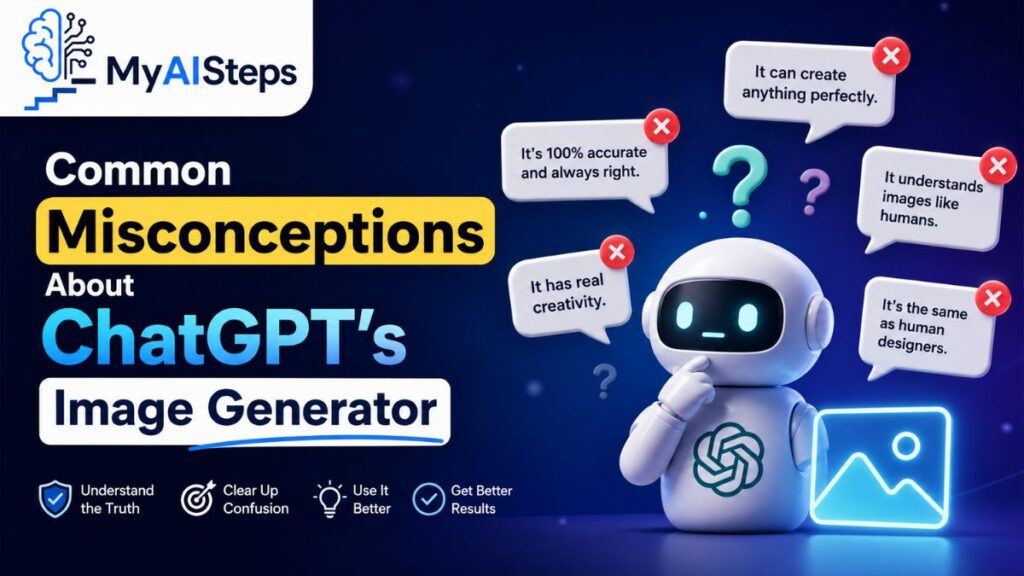
Because AI image generation changes quickly, it’s easy to come across outdated advice. Here are a few myths that still circulate online.
Myth 1: You Need ChatGPT Plus to Generate Images
This was true at one point, but it isn’t anymore. Free users can also create images, although they’ll reach their daily usage limit much sooner than Plus subscribers.
Myth 2: ChatGPT Still Uses DALL·E Behind the Scenes
Earlier versions did rely on DALL·E, but ChatGPT now supports native image generation. This change has improved instruction-following, image editing, and text rendering.
Myth 3: AI Can Replace Professional Designers
AI image generation is an incredible productivity tool, but it isn’t a complete replacement for experienced designers.
For example, when I needed a featured image for a tutorial, ChatGPT produced an excellent first draft in under a minute. It saved me plenty of time brainstorming the layout. However, I still made a few finishing touches afterward to better match my website’s branding. That’s been my experience with most AI-generated visuals—they’re fantastic for creating a strong starting point, while small manual refinements often make the final result look even more polished.
Thinking of ChatGPT as a creative partner rather than a complete replacement usually leads to the best results.
Tips for Getting Better Images Every Time
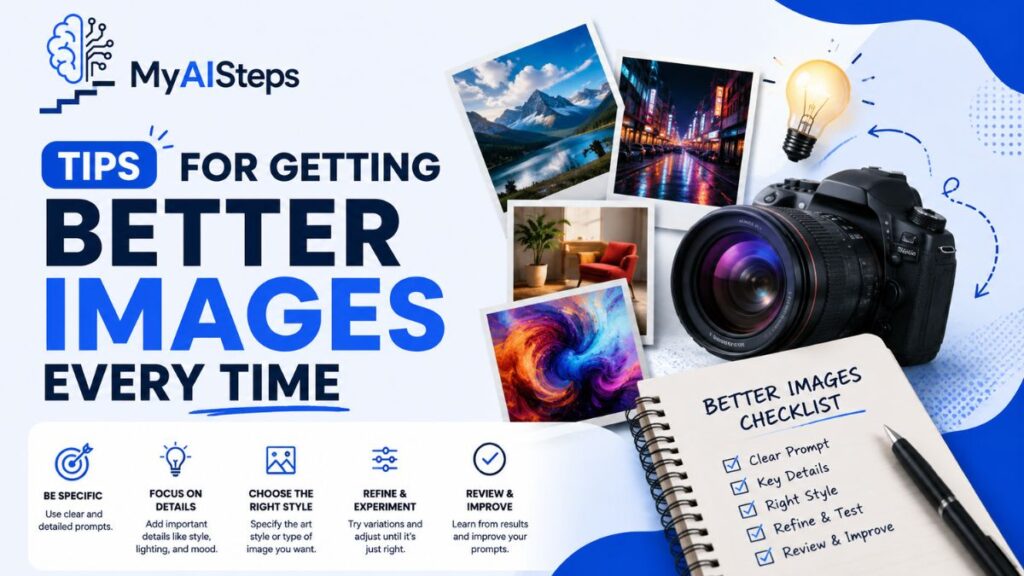
As you use ChatGPT more often, you’ll notice that a few simple habits consistently produce better images.
- Be specific instead of writing vague prompts.
- Mention the artistic style you want.
- Include lighting and camera angle when relevant.
- Describe the intended use, such as a blog header or social media post.
- Refine existing images instead of starting over.
- Save prompts that consistently produce great results.
One trick that’s worked well for me is writing the prompt as though I’m describing the image to a photographer instead of a computer. That small mindset shift naturally leads to clearer, more detailed instructions and noticeably better results.
Conclusion
Creating images with ChatGPT is much easier than many people expect. Instead of learning complicated design software, you simply describe your idea, review the result, and continue refining it through conversation until it looks the way you want. Whether you’re making marketing graphics, blog illustrations, product mockups, or personal artwork, the process is fast enough that experimenting becomes part of the creative workflow.
The biggest difference between average and impressive results isn’t the subscription plan—it’s the quality of your prompts. The more clearly you describe your subject, style, composition, and lighting, the better ChatGPT can understand your vision. Combine that with a few conversational edits, and you’ll often produce images that require very little additional work.
Frequently Asked Questions
Is ChatGPT’s image generator free to use?
Yes. Free users can generate images, although they have lower daily usage limits than paid subscribers.
Do I need DALL·E separately to create images in ChatGPT?
No. ChatGPT now generates images natively, so you don’t need to access DALL·E separately.
Can ChatGPT generate images of celebrities?
Certain requests involving real public figures are restricted under OpenAI’s content policies, so not every request will be approved.
Why doesn’t my generated image match my prompt?
The most common reason is a prompt that’s too broad or lacks important details. Adding information about style, lighting, composition, and subject usually improves the results.
Can I edit an image instead of generating a new one?
Yes. You can either use the selection tool for targeted edits or simply describe the changes you want in a follow-up message.
What aspect ratios does ChatGPT support?
ChatGPT supports multiple aspect ratios, including square, landscape, and portrait formats. You can choose one in the interface or specify it directly in your prompt.
Is ChatGPT better than Midjourney?
It depends on your goal. ChatGPT generally performs better at following detailed instructions and conversational editing, while Midjourney is often preferred for highly artistic and stylized images.
Can I use ChatGPT-generated images for my business?
Yes. OpenAI allows commercial use of images you generate, provided your use complies with its terms and applicable laws.