

ChatGPT users occasionally encounter unexpected Cloudflare errors while trying to access the platform. In most cases, these errors appear without warning and can prevent users from logging in, loading conversations, or even opening the website. Although the error message may look serious, the good news is that most Cloudflare-related issues are temporary and can be fixed without advanced technical knowledge.
Cloudflare acts as a security layer between your browser and OpenAI’s servers. It helps protect ChatGPT from bots, cyberattacks, and suspicious traffic. However, legitimate users can sometimes get blocked because of VPN usage, browser settings, corrupted cookies, or network-related issues. This guide explains the most common causes of ChatGPT Cloudflare errors and shows you exactly how to fix them on any device.
Why Does ChatGPT Get Blocked by Cloudflare?
Quick Answer

ChatGPT gets blocked by Cloudflare when its security system detects unusual or suspicious activity from your browser, network, or IP address. Common triggers include VPN usage, corrupted browser cookies, blocked JavaScript, browser extensions, or flagged IP addresses.
Cloudflare is responsible for protecting ChatGPT from malicious traffic, automated bots, and large-scale cyberattacks. Every time you visit ChatGPT, Cloudflare analyzes multiple signals before allowing access.
These checks happen in real time and usually take only a few seconds. Most users never notice them. However, if something looks unusual, Cloudflare may display an error page or ask you to complete additional verification.
How Cloudflare Evaluates Your Connection
When you open ChatGPT, Cloudflare performs several security checks, including:
IP reputation analysis to determine whether your IP address has been associated with suspicious activity.
JavaScript verification to confirm that a real browser is accessing the website.
Cookie validation to verify previous security checks.
Browser fingerprinting to detect automated tools or bots.
Rate-limiting checks to prevent excessive requests.
If one or more of these checks fail, Cloudflare may temporarily block access until the issue is resolved.
Common Reasons ChatGPT Gets Blocked
| Cause | Why It Triggers Cloudflare |
| VPN or Proxy | Many VPN IPs are already flagged as high-risk. |
| Corrupted Cookies | Expired security cookies prevent verification. |
| Browser Extensions | Ad blockers and privacy tools may block Cloudflare scripts. |
| Shared Networks | Public or corporate networks often use flagged IP addresses. |
| Excessive Requests | Rapid refreshes or automation can trigger rate limits. |
| Disabled JavaScript | Cloudflare challenges cannot run properly. |
How Cloudflare’s Bot Detection System Works
Quick Answer

Cloudflare uses advanced bot detection technologies to separate legitimate human visitors from automated traffic. It analyzes browser behavior, connection details, cookies, and network signals before granting access.
Many users assume Cloudflare simply checks whether JavaScript is enabled. In reality, the system is far more sophisticated.
Cloudflare combines several security technologies simultaneously to determine whether a visitor is genuine.
Key Security Signals Cloudflare Uses
IP Reputation Scoring
Cloudflare maintains a massive global threat intelligence database. Every incoming IP address receives a reputation score based on previous activity.
For example, IP addresses frequently associated with spam, scraping, or suspicious automation often receive additional verification challenges.
Browser Fingerprinting
Cloudflare analyzes browser characteristics such as:
User-Agent strings
Screen resolution
Browser capabilities
TLS fingerprints
Connection behavior
These details help identify whether the visitor is using a legitimate browser or an automated tool.
Cookie-Based Verification
After successfully passing verification, Cloudflare stores security cookies in your browser.
The most important cookies include:
cf_clearance
__cf_bm
If these cookies become corrupted, deleted, or blocked, users may experience endless verification loops or repeated CAPTCHA requests.
JavaScript Challenges
Cloudflare also runs invisible JavaScript challenges in the background.
If JavaScript is disabled or interrupted by browser extensions, the challenge fails and access may be denied.
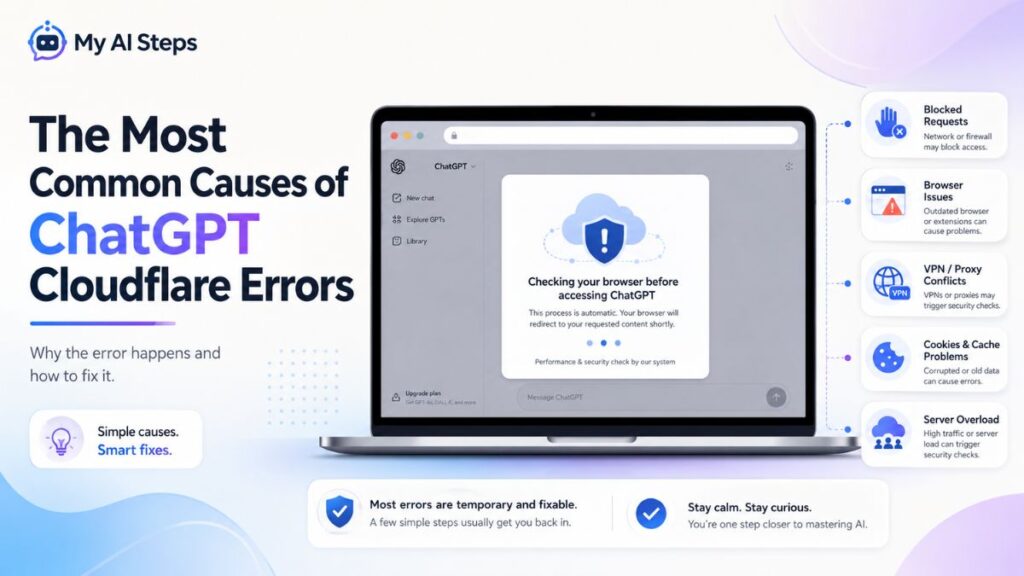
The Most Common Causes of ChatGPT Cloudflare Errors
Quick Answer
The majority of ChatGPT Cloudflare errors are caused by VPN services, browser extensions, corrupted cookies, network reputation issues, or browser configuration conflicts.
Understanding the root cause is important because refreshing the page rarely solves the problem permanently.
VPN or Proxy Usage
VPNs are responsible for a large percentage of ChatGPT Cloudflare errors.
Most commercial VPN providers use datacenter IP addresses. Since these IP ranges are commonly used by bots and automated tools, Cloudflare often treats them as suspicious.
Free VPN services create even more problems because thousands of users share the same IP addresses.
Corrupted Browser Cache and Cookies
Cloudflare relies heavily on browser cookies to remember successful verification sessions.
When cookies expire or become corrupted, Cloudflare cannot validate your session correctly. As a result, users may encounter:
Error 1020
Verification loops
CAPTCHA failures
“Access Denied” messages
Clearing cookies for openai.com often resolves these issues immediately.
Browser Extensions Interference
Privacy-focused browser extensions can unintentionally block Cloudflare security scripts.
Common examples include:
uBlock Origin
Ghostery
Privacy Badger
NoScript
AdGuard
Temporarily disabling extensions or adding ChatGPT to the whitelist usually fixes the problem.
Shared or Corporate Networks
Schools, offices, hotels, and public Wi-Fi networks often share a single public IP address among many users.
If another user on the same network previously triggered Cloudflare security rules, your connection may inherit the same reputation score.
Excessive Requests and Automation
Repeated page refreshes, browser automation tools, or aggressive extensions can activate Cloudflare’s rate-limiting protections.
When this happens, users may temporarily lose access until the request rate returns to normal.
Understanding these common triggers makes troubleshooting significantly easier and helps prevent future Cloudflare errors while using ChatGPT.
How to Fix ChatGPT Cloudflare Errors Quickly
Quick Answer

Most ChatGPT Cloudflare errors can be fixed by disabling your VPN, clearing browser cookies, restarting your browser, checking your internet connection, or switching to a different network.
Before trying advanced troubleshooting methods, start with the simplest fixes first. In many cases, users regain access within a few minutes by making a small change to their browser or network settings.
The following solutions have resolved Cloudflare-related problems for many ChatGPT users across different devices and browsers.
Disable Your VPN or Proxy Service
VPNs are one of the leading causes of ChatGPT Cloudflare errors.
Cloudflare continuously evaluates the reputation of IP addresses. Since many VPN providers use shared datacenter IP addresses, these IPs are often flagged as suspicious.
If you are connected to a VPN:
Disconnect the VPN temporarily.
Close your browser completely.
Reopen ChatGPT.
Try signing in again.
If ChatGPT starts working immediately after disabling the VPN, the VPN server was most likely responsible for triggering the security challenge.
When You Should Keep Using a VPN
If you need a VPN for privacy reasons, try:
- Switching to another VPN server.
- Using residential IP servers if available.
- Choosing a premium VPN provider instead of a free service.
- Rotating to a different location.
Many users find that simply changing servers resolves the issue.
Clear Browser Cache and Cookies
Corrupted cookies and outdated cache files frequently cause ChatGPT verification failures. Clearing them often resolves endless CAPTCHA loops and “Access Denied” errors.
Cloudflare stores temporary verification data in your browser. If these files become damaged or outdated, Cloudflare may fail to recognize your previous security checks.
How to Clear Cookies in Google Chrome
Open Chrome Settings.
Navigate to Privacy and Security.
Select Clear Browsing Data.
Choose Cookies and Other Site Data.
Select Cached Images and Files.
Click Clear Data.
After clearing browser data, restart Chrome and revisit ChatGPT.
Browsers That May Experience Cloudflare Issues
| Browser | Potential Issue |
| Chrome | Corrupted cache or blocked cookies |
| Firefox | Strict privacy settings |
| Microsoft Edge | Extension conflicts |
| Safari | Cookie restrictions |
| Brave | Aggressive tracker blocking |
If possible, test ChatGPT in another browser to determine whether the problem is browser-specific.
Disable Browser Extensions That Interfere with Cloudflare

Quick Answer
Ad blockers, privacy extensions, and script-blocking tools can prevent Cloudflare from completing security verification.
Many users are unaware that browser extensions can interfere with Cloudflare’s background processes.
Security-focused extensions often block JavaScript files, cookies, tracking scripts, or browser requests that Cloudflare depends on.
Extensions That Commonly Cause Problems
Ghostery
NoScript
Privacy Badger
AdGuard
ScriptSafe
You do not necessarily need to remove these extensions permanently.
Instead:
Disable all extensions temporarily.
Restart your browser.
Visit ChatGPT again.
Re-enable extensions one at a time.
This approach helps identify which extension is causing the conflict.
Use Incognito Mode for Testing
Opening ChatGPT in Incognito or Private Browsing mode is another quick troubleshooting step.
Since most extensions remain disabled in private mode, this method can quickly determine whether extensions are responsible.
If ChatGPT works in Incognito mode but fails in normal browsing mode, an extension conflict is highly likely.
Check Your Internet Connection and Network Reputation

Quick Answer
Unstable internet connections, public Wi-Fi networks, and shared IP addresses can trigger Cloudflare security checks.
Cloudflare analyzes not only your browser but also your network environment.
For example, school networks, office connections, public hotspots, and hotel Wi-Fi often share a single public IP address among hundreds of users.
If another user previously generated suspicious traffic, the entire network may inherit a poor reputation score.
Signs of Network-Related Problems
You may be dealing with a network issue if:
ChatGPT works on mobile data but not Wi-Fi.
Multiple devices experience the same error.
CAPTCHA challenges appear repeatedly.
Error 1020 appears consistently.
Solutions for Network Issues
Try the following:
Restart your router.
Switch from Wi-Fi to mobile data.
Connect to a different network.
Reboot your modem.
Contact your internet service provider if the issue persists.
In some situations, your ISP may assign a new IP address after restarting your modem, which can immediately restore access.
Flush DNS Cache to Resolve Connectivity Issues
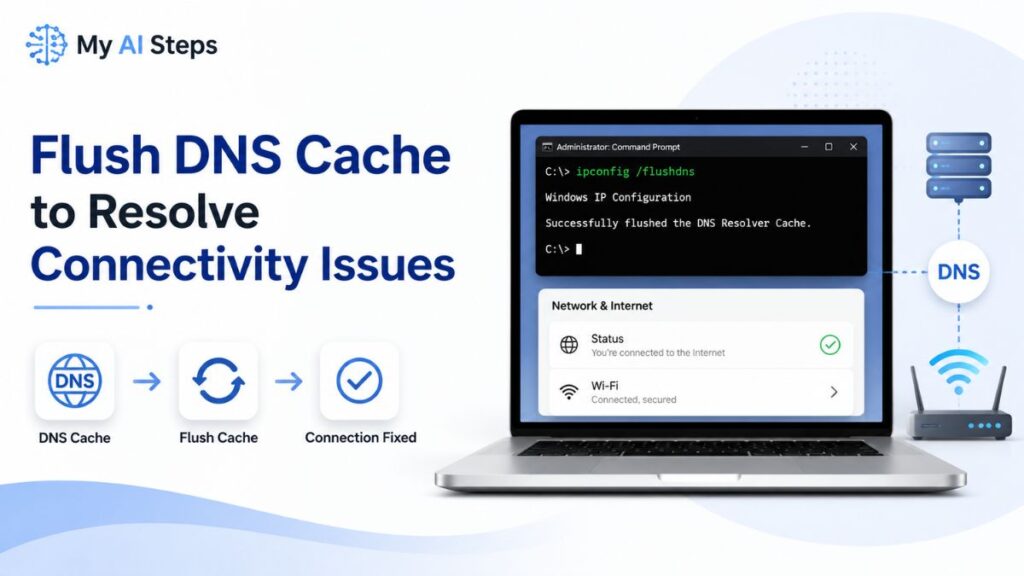
DNS-related problems occasionally prevent ChatGPT from loading correctly.
Flushing the DNS cache removes outdated network records and forces your device to retrieve fresh information.
Windows
Open Command Prompt as Administrator and run:
ipconfig /flushdns
macOS
Open Terminal and run:
sudo dscacheutil -flushcache; sudo killall -HUP mDNSResponder
After flushing DNS, restart your browser and test ChatGPT again.
Although DNS issues are less common, this step can resolve stubborn connection problems that persist after trying other solutions.
Advanced Solutions for Persistent ChatGPT Cloudflare Errors

Quick Answer
If basic troubleshooting steps do not fix ChatGPT Cloudflare errors, advanced solutions such as updating your browser, enabling JavaScript, changing DNS servers, or contacting OpenAI Support may be necessary.
Most users regain access after clearing cookies or disabling a VPN. However, some issues persist because of browser misconfigurations, outdated software, or network-level restrictions.
The following advanced fixes can help resolve stubborn Cloudflare errors.
Update Your Browser to the Latest Version
Outdated browsers may not support the latest security protocols used by Cloudflare.
Modern security systems rely on updated browser technologies, including:
- TLS encryption standards
- Security certificates
- JavaScript frameworks
- Browser APIs
Running an outdated browser can cause verification failures or endless loading screens.
To avoid compatibility issues:
Update Google Chrome regularly.
Install the latest Firefox updates.
Keep Microsoft Edge fully updated.
Upgrade Safari through system updates.
Using the newest browser version improves both security and performance.
Enable JavaScript in Your Browser
Cloudflare uses JavaScript challenges to verify that visitors are legitimate users rather than automated bots.
If JavaScript is disabled, ChatGPT may fail to load properly.
How to Check JavaScript Settings
Open your browser settings.
Navigate to Site Settings.
Locate JavaScript Permissions.
Ensure JavaScript is enabled.
Refresh ChatGPT.
In many cases, script-blocking extensions disable JavaScript automatically. Always check extension settings if problems continue.
Change Your DNS Provider
Sometimes, slow or outdated DNS servers can interfere with website connectivity.
Switching to a reliable public DNS provider may improve both speed and stability.
| DNS Provider | Primary DNS | Secondary DNS |
| Google Public DNS | 8.8.8.8 | 8.8.4.4 |
| Cloudflare DNS | 1.1.1.1 | 1.0.0.1 |
| OpenDNS | 208.67.222.222 | 208.67.220.220 |
Changing DNS settings can also help bypass temporary ISP-related routing issues.
Common ChatGPT Cloudflare Error Codes Explained

Quick Answer
Different Cloudflare error codes indicate different underlying problems. Understanding the specific error code makes troubleshooting significantly easier.
Error 1020: Access Denied
Error 1020 usually means Cloudflare blocked your request because it violated a security rule.
Common causes include:
VPN usage
Suspicious IP addresses
Browser automation tools
Aggressive browser extensions
The fastest solution is typically disabling the VPN, clearing cookies, and trying another network.
Error 403 Forbidden
A 403 error indicates that access to the requested resource has been denied.
Possible causes include:
Expired session tokens
Browser security conflicts
Corrupted cookies
Network restrictions
Refreshing your session or signing in again often resolves this issue.
Infinite CAPTCHA Loop
Some users repeatedly complete CAPTCHA challenges without gaining access.
This issue often occurs when:
Browser cookies are blocked.
JavaScript is disabled.
Privacy extensions interfere with Cloudflare scripts.
Clearing cookies and disabling extensions usually fixes the loop.
When Should You Contact OpenAI Support?

You should contact OpenAI Support if none of the troubleshooting methods work and Cloudflare errors continue for several days.
Before reaching out to support, collect the following information:
The exact error message.
Screenshots of the error page.
Your browser version.
Your operating system.
The approximate time the error occurred.
Providing detailed information helps OpenAI investigate the issue more efficiently.
You should consider contacting support if:
The error persists across multiple devices.
Multiple networks produce the same error.
The issue continues for more than 24 to 48 hours.
You suspect your account has been restricted incorrectly.
Conclusion
ChatGPT Cloudflare errors can be frustrating, especially when they interrupt important work or study sessions. Fortunately, most problems are relatively easy to fix once you understand what triggers Cloudflare’s security system.
By disabling problematic VPNs, clearing browser cookies, checking extensions, updating your browser, and troubleshooting network issues, you can usually restore access quickly. Following these best practices not only solves current Cloudflare errors but also reduces the chances of encountering similar issues in the future.
Frequently Asked Questions
Why does ChatGPT keep showing Cloudflare verification?
ChatGPT may repeatedly show Cloudflare verification if your browser cookies are corrupted, your VPN is enabled, or browser extensions are blocking security scripts.
Can a VPN cause ChatGPT Cloudflare errors?
Yes. Many VPN IP addresses are shared among thousands of users and may already have poor reputation scores, causing Cloudflare to trigger additional security checks.
Is Cloudflare blocking my ChatGPT account?
Not necessarily. In most cases, Cloudflare blocks only a specific browser session, network, or IP address rather than the actual ChatGPT account.
Can clearing cookies fix ChatGPT Cloudflare errors?
Yes. Clearing cookies frequently resolves verification loops, access denied errors, and failed security challenges.
Are ChatGPT Cloudflare errors temporary?
Most Cloudflare errors are temporary and can usually be fixed within minutes by adjusting browser, network, or VPN settings.