
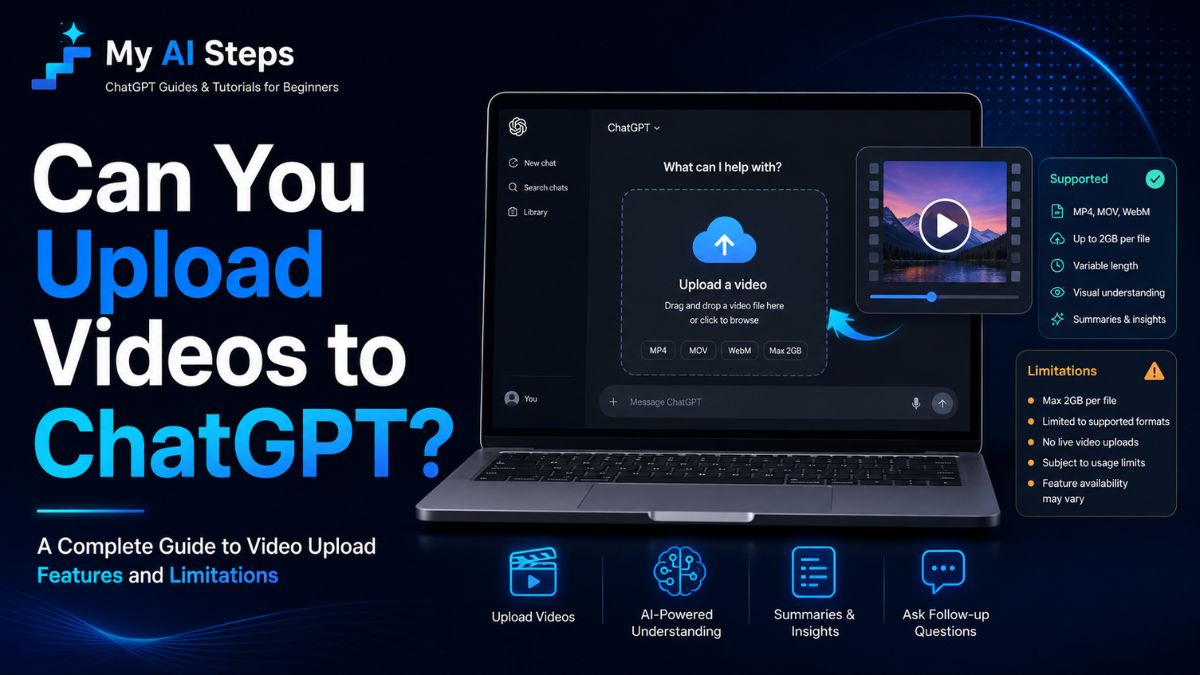
If you’ve been wondering whether ChatGPT can actually handle video files, you’re not alone. A lot of people assume that because the tool works with images and documents, video should behave the same way. The reality is more nuanced than that, and knowing the difference upfront can save you a lot of frustration before you start uploading files that won’t work.
ChatGPT has expanded its file handling capabilities significantly over the past couple of years, but video support is still limited in specific ways. This guide breaks down exactly what’s possible, which plans support it, and how to actually do it.
Can You Upload Videos to ChatGPT in 2026?
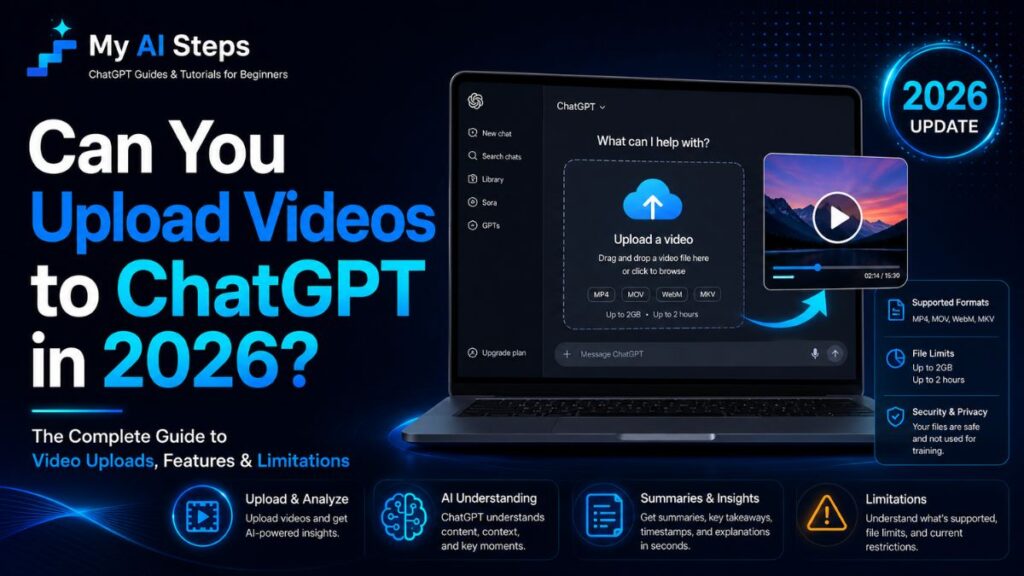
Yes — but only on certain plans, and with some real restrictions worth knowing before you dive in. Video support wasn’t always part of ChatGPT. For a long time, the tool only accepted images, PDFs, and basic document types. Video input came later, and it’s still not available to every user.
When you upload a video, ChatGPT doesn’t process it the way you’d watch a clip. It analyzes visual frames and, depending on the model and plan, may also process audio content. Think of it less like “playing” your video and more like giving the AI a structured way to extract meaning from it.
One thing beginners often get wrong is expecting ChatGPT to handle long recordings without issue. Uploading a 90-minute interview and asking for a full summary on the first try usually doesn’t go well. Short clips — typically a few minutes — produce far more reliable results. The AI works better with clean, focused content than with lengthy or noisy files.
Which ChatGPT Plans Allow Video Uploads?
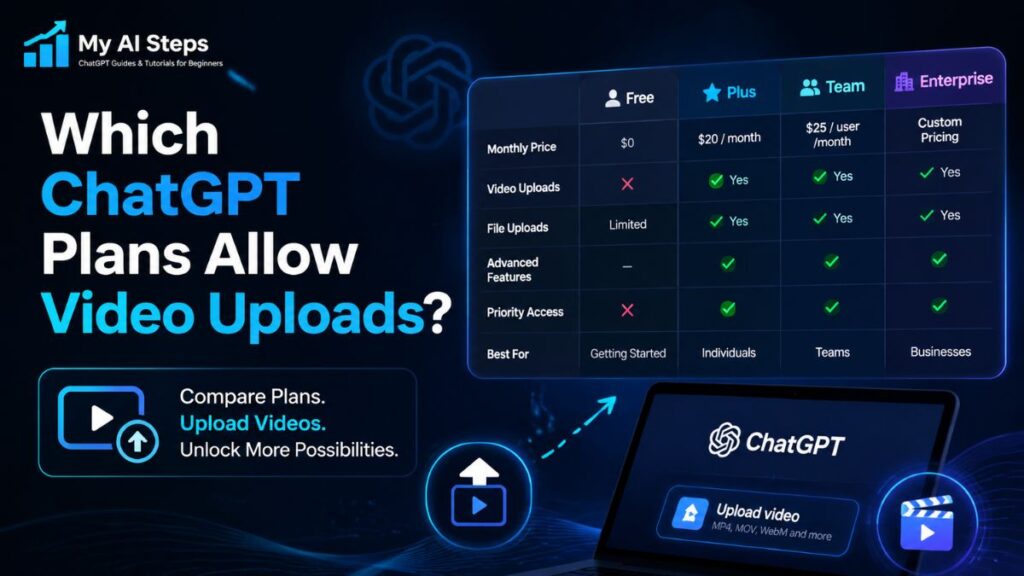
Not every plan includes video upload access. As of 2026, video input is available on ChatGPT Plus, Pro, and Team plans. The free tier does not support it.
Here’s how the plans break down:
Free plan:
No video upload support. Text, images, and some document types still work fine.
Plus plan ($20/month):
Video uploads are enabled through GPT-4o. File size limits apply, and there are caps on how many video files you can process per session.
Pro plan ($200/month):
Wider access with higher usage limits. Better suited for anyone doing frequent or heavier video-related tasks.
Team and Enterprise plans:
Full access with admin-level controls and potentially higher file size allowances based on your organization’s configuration.
If you’re on the free plan and need to work with video content, a practical workaround is to extract the audio first and upload a transcript or plain text file instead. It’s not seamless, but it handles most summarization or Q&A tasks reasonably well without needing a paid plan.
How to Upload a Video to ChatGPT Step by Step
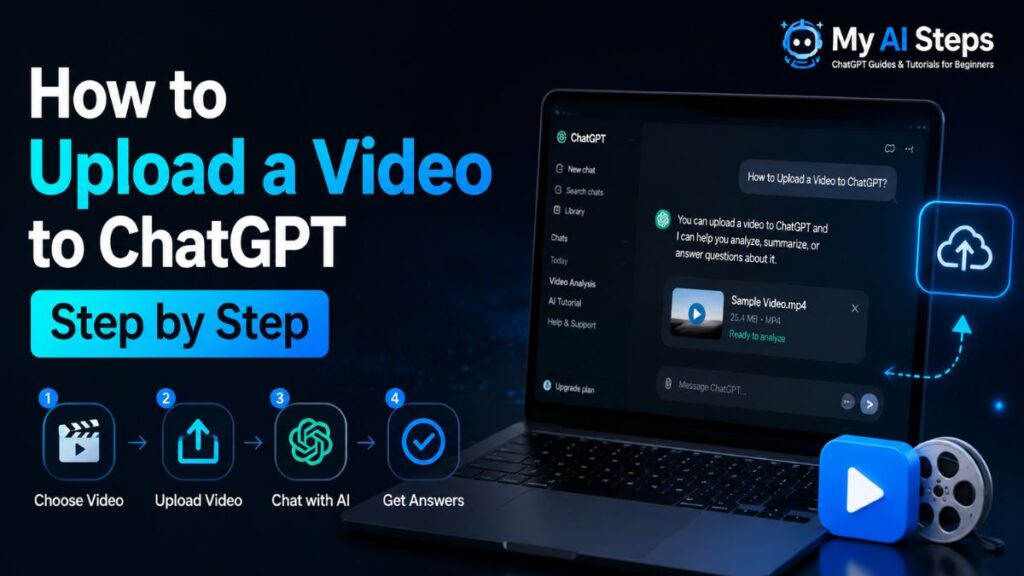
The process is fairly simple once you know where everything is. Here’s how to do it:
Open ChatGPT and log in to a supported plan — Plus, Pro, or Team.
Select GPT-4o from the model selector at the top of the chat window. Video input requires this specific model.
Click the paperclip or attachment icon in the chat input bar.
Choose your video file. Supported formats typically include MP4 and MOV. Keep the file under 512MB for the most reliable results.
Write a clear prompt. Vague instructions produce vague output. Try something like: “Summarize what’s being discussed in this video” or “List the key points made by the speaker.”
Send your message and give it a moment. Processing time depends on file size and current server load.
A practical tip worth mentioning: videos with heavy background noise, fast cuts, or poor audio tend to produce less accurate output. If you’re working on something important, test with a short, clean clip first before uploading your main file. That small step can save you from a frustrating back-and-forth later.
What Types of Video Files Does ChatGPT Support?
ChatGPT doesn’t accept every video format. Knowing which file types work — and which ones will get rejected — saves you time before you even start.
As of 2026, the formats with the most consistent support are:
MP4 — This is the most reliable option. If your video is in any other format, converting it to MP4 first is the safest move.
MOV — Generally works, especially for files recorded on iPhones or Mac-based video software.
MPEG and WebM — These may work in some cases but tend to be less predictable.
If you’re working with AVI, MKV, WMV, or FLV files, you’ll likely run into an unsupported format error. A free converter like HandBrake can quickly reformat those into MP4 without any quality loss.
File size is the other thing to pay attention to. ChatGPT typically caps video uploads at around 512MB. Large files either get rejected outright or take so long to process that the session times out. If your video is heavy, trimming it to the relevant section before uploading almost always produces better results than sending the full file.
Resolution also matters, though not in the way you might expect. Very high-resolution files like 4K don’t dramatically improve the AI’s understanding of the content. A standard 1080p or even 720p file is usually enough for analysis tasks.
Can ChatGPT Analyze and Summarize Video Content?
Yes, and this is actually where the feature becomes genuinely useful. Once a video is uploaded and processed, you can ask ChatGPT to do quite a bit with it.
Common tasks that work well:
Summarizing spoken content from interviews, presentations, or tutorials
Identifying key topics covered in a recorded lecture or webinar
Pulling out specific details, like steps in a demo or answers given during a Q&A session
Describing on-screen visuals, charts, or text if you’re working with screen recordings
The quality of the output depends heavily on how the video is structured. A clear talking-head video with one person speaking tends to produce cleaner summaries than a fast-paced video with multiple speakers, jump cuts, and background music.
One thing to keep in mind: ChatGPT isn’t transcribing the video the way a dedicated tool like Otter.ai or Descript does. It’s interpreting meaning from what it processes. For most casual tasks that’s fine. But if you need a word-for-word transcript with timestamps, a purpose-built transcription tool will serve you better.
Where ChatGPT stands out is combining analysis with follow-up questions. You can upload a product demo video and then ask things like “What problem does this product solve?” or “What steps does the presenter skip over?” That kind of layered questioning is hard to replicate with most transcription tools alone.
What Are the Current Limitations of Video Uploads in ChatGPT?
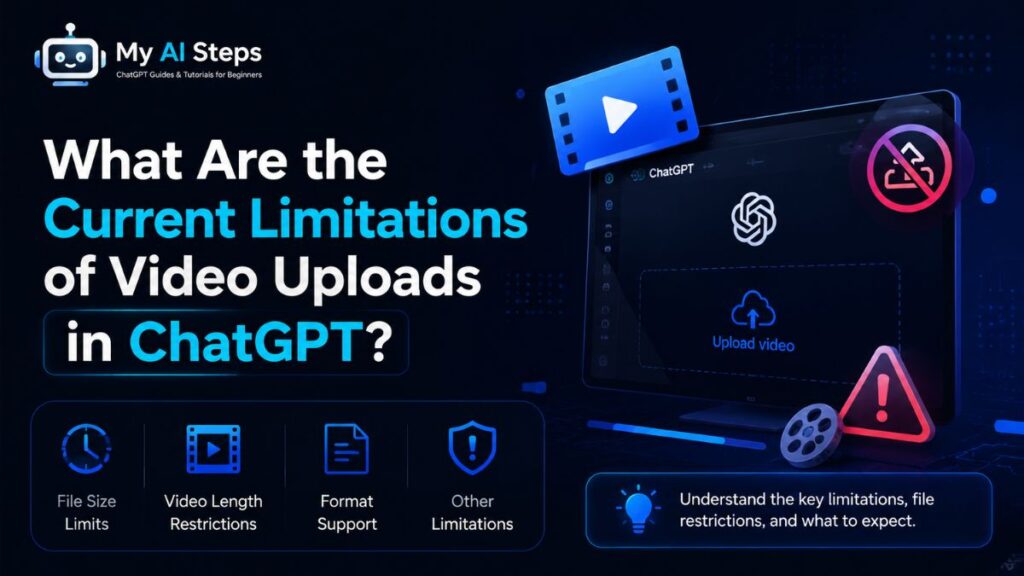
The feature works, but it’s worth being honest about what it still can’t do.
Length limits are a real constraint
ChatGPT handles short clips much better than long recordings. Anything beyond a few minutes can result in incomplete analysis, cut-off summaries, or processing errors. If you’re working with a 45-minute webinar, breaking it into 5–10 minute segments before uploading gives you significantly better output.
Audio-heavy content can be tricky
If the core value of a video is in what’s being said rather than what’s on screen, the accuracy of ChatGPT’s interpretation can vary. Background noise, overlapping voices, and non-English audio are all factors that can reduce the quality of the response.
No real-time or live video support
You can’t connect a live feed, share your screen, or process streaming content. Everything has to be a pre-recorded file.
No video editing or export
ChatGPT can analyze and describe a video, but it can’t clip, trim, caption, or export anything. It’s a reading tool, not an editing tool.
Session-based only
Once the chat session ends, ChatGPT doesn’t retain your video. If you need to revisit the same file later, you’ll need to re-upload it in a new session.
Why Is Your Video Not Uploading to ChatGPT? Common Fixes
If your upload keeps failing, there are a handful of reasons this typically happens.
Wrong file format. As mentioned earlier, MP4 is the safest bet. If your file is in a less common format, convert it first and try again.
File is too large. Anything over 512MB is likely to fail. Compress the file using a free tool like HandBrake or trim the video to a shorter clip.
Wrong model selected. Video uploads require GPT-4o. If you’re in a session using a different model, the attachment option for video either won’t appear or won’t process correctly. Switch the model and try again.
Plan doesn’t support video. If you’re on the free tier, video uploads aren’t available regardless of what model you select. Upgrading to Plus is the minimum requirement to access this feature.
Browser or app issues. Sometimes a simple cache clear or browser refresh fixes the problem. If you’re using the mobile app, make sure it’s updated to the latest version. Older versions occasionally have upload bugs that have since been patched.
Server load. During peak hours, file processing can be slower or temporarily unavailable. Waiting a few minutes and trying again usually resolves this without any changes on your end.
How Video Uploading Works on Desktop and Mobile Devices
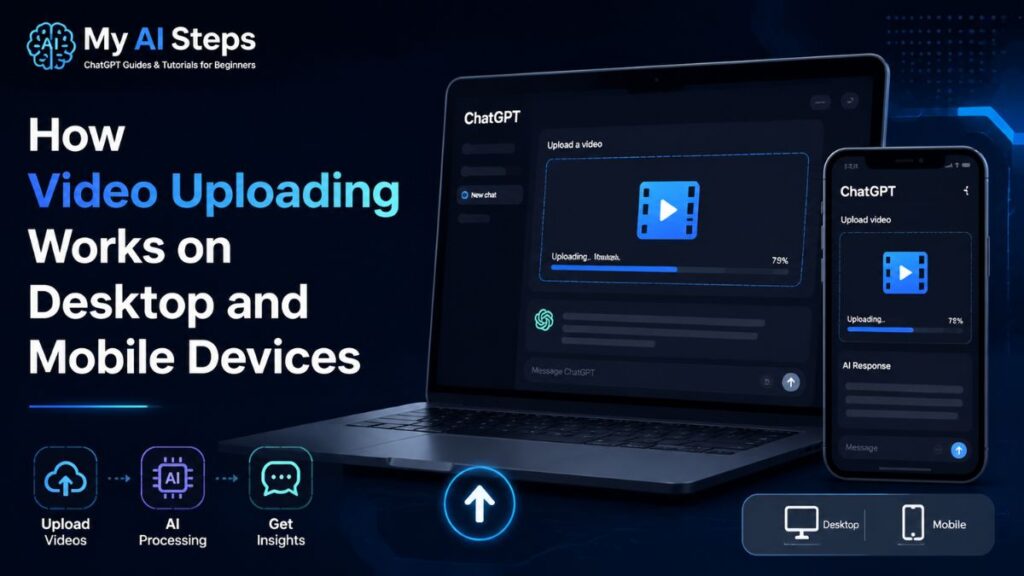
The experience is slightly different depending on whether you’re using ChatGPT on a browser or through the mobile app — and knowing this helps avoid some confusion.
On desktop (browser): Head to chat.openai.com, make sure GPT-4o is selected, and look for the attachment icon in the chat input bar. Click it, choose your file from your computer, and it should start uploading immediately. The process is straightforward on Chrome, Edge, and Safari. Firefox has occasionally caused upload issues for some users, so if you run into problems, switching browsers is worth trying.
On the ChatGPT mobile app (iOS and Android): Tap the plus icon or paperclip inside the message input area. From there, you can select a video from your camera roll or file storage. The same format and size rules apply. One thing to watch on mobile is your internet connection — video files are heavy, and uploading over a slow or unstable connection often leads to failed transfers or corrupted uploads. Using Wi-Fi rather than mobile data is the more reliable choice.
Both platforms process the video on OpenAI’s servers after upload. You don’t need to do anything special — just wait for it to finish loading, then write your prompt.
Is It Safe to Upload Personal Videos to ChatGPT?
This is a reasonable question and one worth thinking through before you upload anything sensitive.
OpenAI’s privacy policy states that content you submit through ChatGPT may be used to improve their models unless you’ve opted out of data sharing. This option is available in your account settings under “Data controls.” If you’re uploading videos containing private conversations, personal footage, medical information, or anything confidential, turning off training data sharing before uploading is a sensible precaution.
For work-related or business videos, check whether your organization has a Team or Enterprise plan. Those plans generally offer stronger data privacy terms, including agreements that content won’t be used for model training.
Avoid uploading videos that contain other people’s personal information without their knowledge. That’s less about ChatGPT specifically and more about responsible use of any AI tool.
For most casual tasks — uploading a tutorial, a recorded presentation, or a short personal video to get a summary — the risk is low. But being aware of the default data settings and adjusting them when needed puts you in control of what you’re sharing.
Best Alternatives When You Cannot Upload Videos to ChatGPT
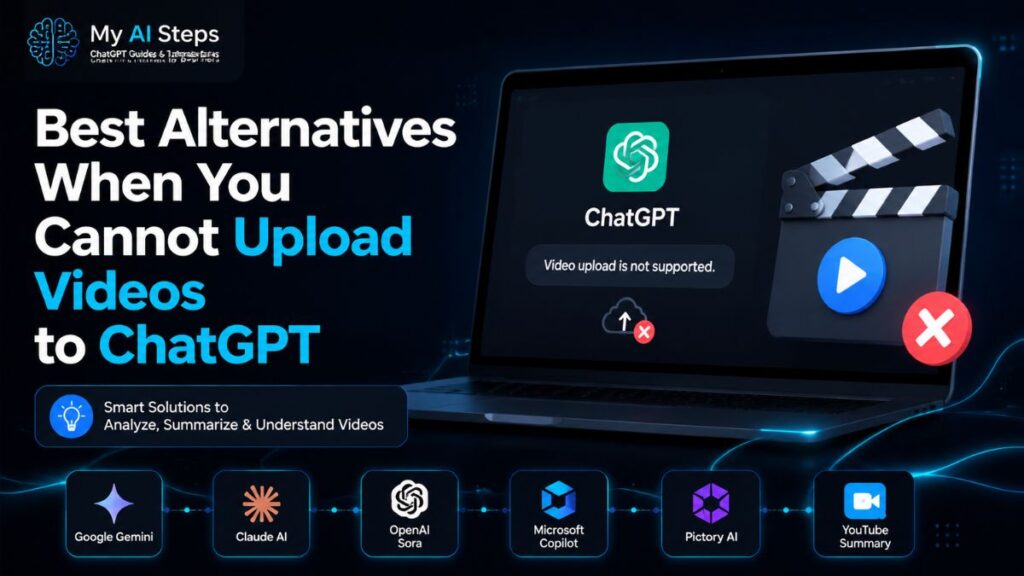
If you’re on the free plan, or ChatGPT’s video feature isn’t giving you what you need, a few other tools handle video content well.
Gemini (Google): Google’s AI tool supports video input, including YouTube links. If you’re working with YouTube content specifically, Gemini is one of the more practical options available right now.
Claude by Anthropic: Handles documents and images well, though direct video upload support is still limited. For text-heavy tasks around video scripts or captions, it’s worth exploring.
Otter.ai and Descript: If your main goal is transcription — turning spoken words into searchable text — these tools are purpose-built for it. They’re more accurate than a general AI assistant for word-for-word transcription.
VEED.io and Riverside.fm: Useful if you need to extract subtitles, generate captions, or analyze video content as part of a content production workflow.
None of these replace ChatGPT for everything, but depending on what you actually need from the video, one of them might be a better fit for that specific task.
Conclusion
Video upload support in ChatGPT has come a long way, but it still works best when you approach it with the right expectations. Short, clear clips in MP4 format on a paid plan give you the most reliable experience. Using it for summarization, content analysis, and visual Q&A is where it genuinely adds value — not for transcription, editing, or processing hour-long recordings.
If the feature doesn’t fit your current needs, the alternatives above cover most use cases. The right tool depends on what you’re actually trying to do with the video.
Frequently Asked Questions
Can you upload videos to ChatGPT for free?
No, video uploads require a paid plan — at minimum, ChatGPT Plus.
What video format works best with ChatGPT?
MP4 is the most reliable format for uploading and processing.
Is there a video file size limit on ChatGPT?
Yes, the general limit is around 512MB per file.
Can ChatGPT transcribe a video word for word?
Not precisely — it analyzes and interprets content rather than producing exact transcripts.
Does ChatGPT save uploaded videos after the session ends?
No, videos are not retained once the chat session is closed.